Tutorial
How to Turn On Only the Layers You Need
Enabling every feed at once makes the map hard to read. On GodsView AI, the Layers panel is the control surface. If a row is not highlighted, that layer is off. If many rows are on, narrow the view to your question.
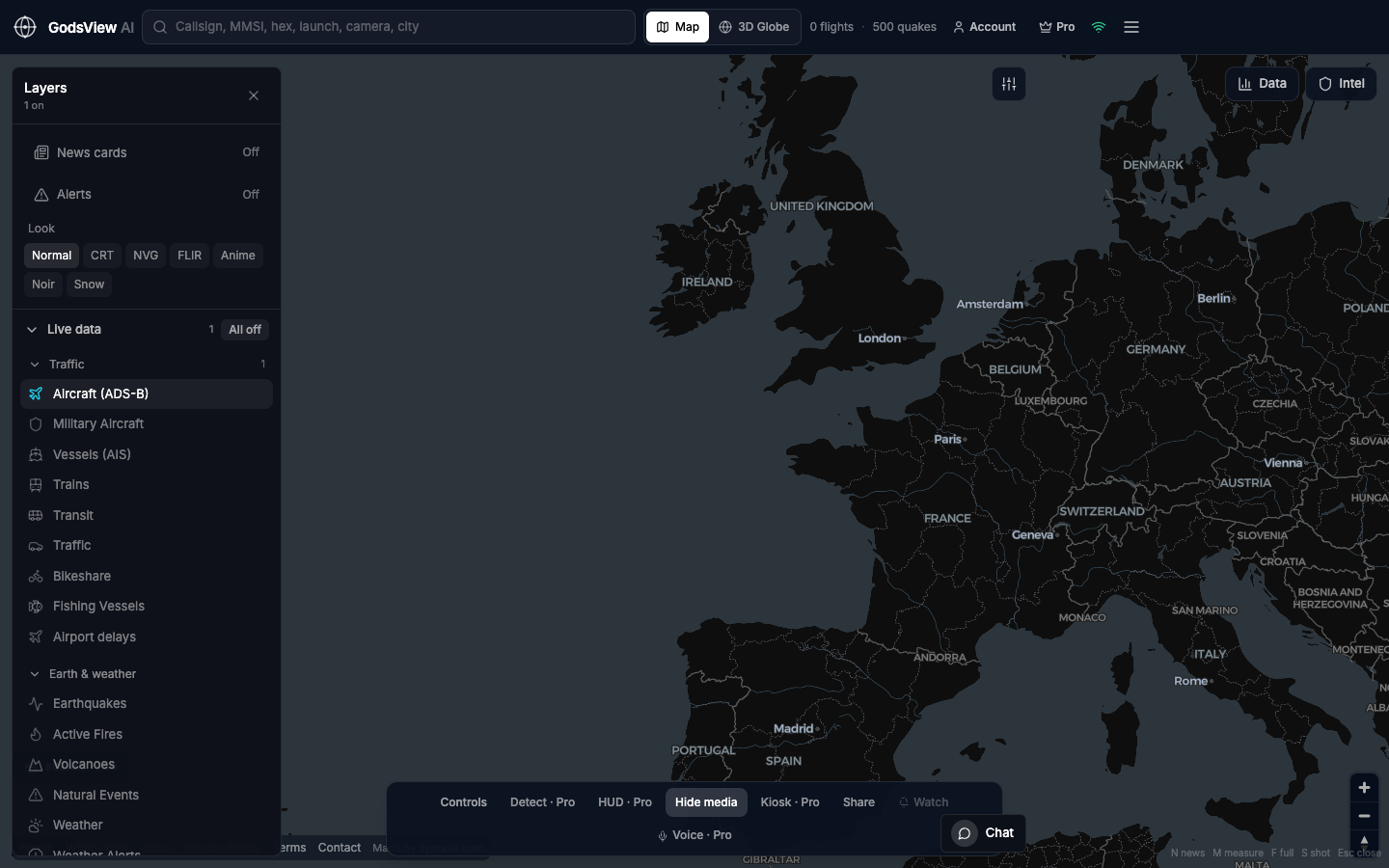
- Click Layers (top left on desktop).
- Click All off. Header counts should drop.
- Click Aircraft (ADS-B) for flights—the row highlights.
- Or Vessels (AIS) for ships.
- Or Earthquakes and Active Fires for hazards.
- Enable Military Aircraft only when needed; keep civil Aircraft on for context.
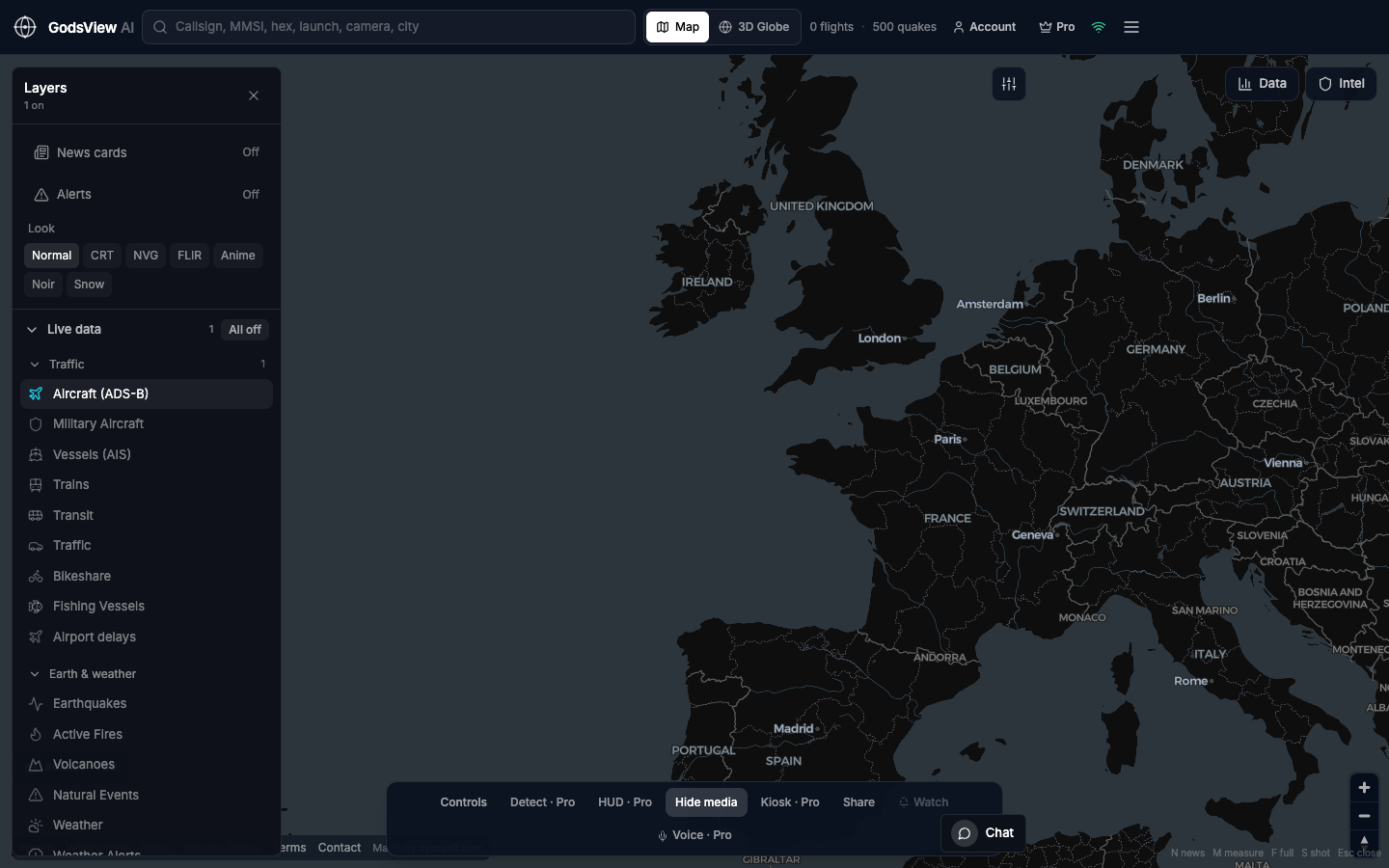
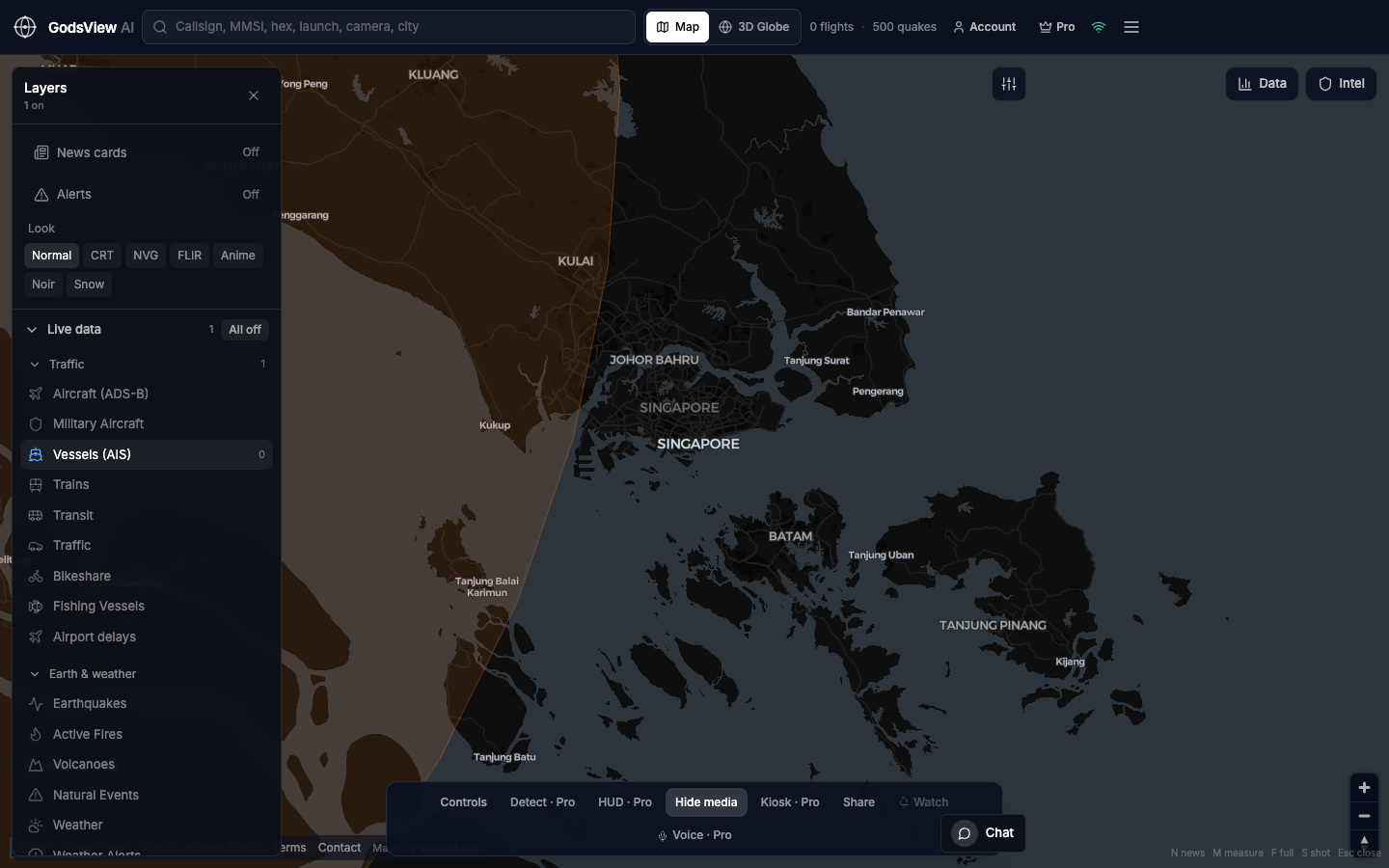
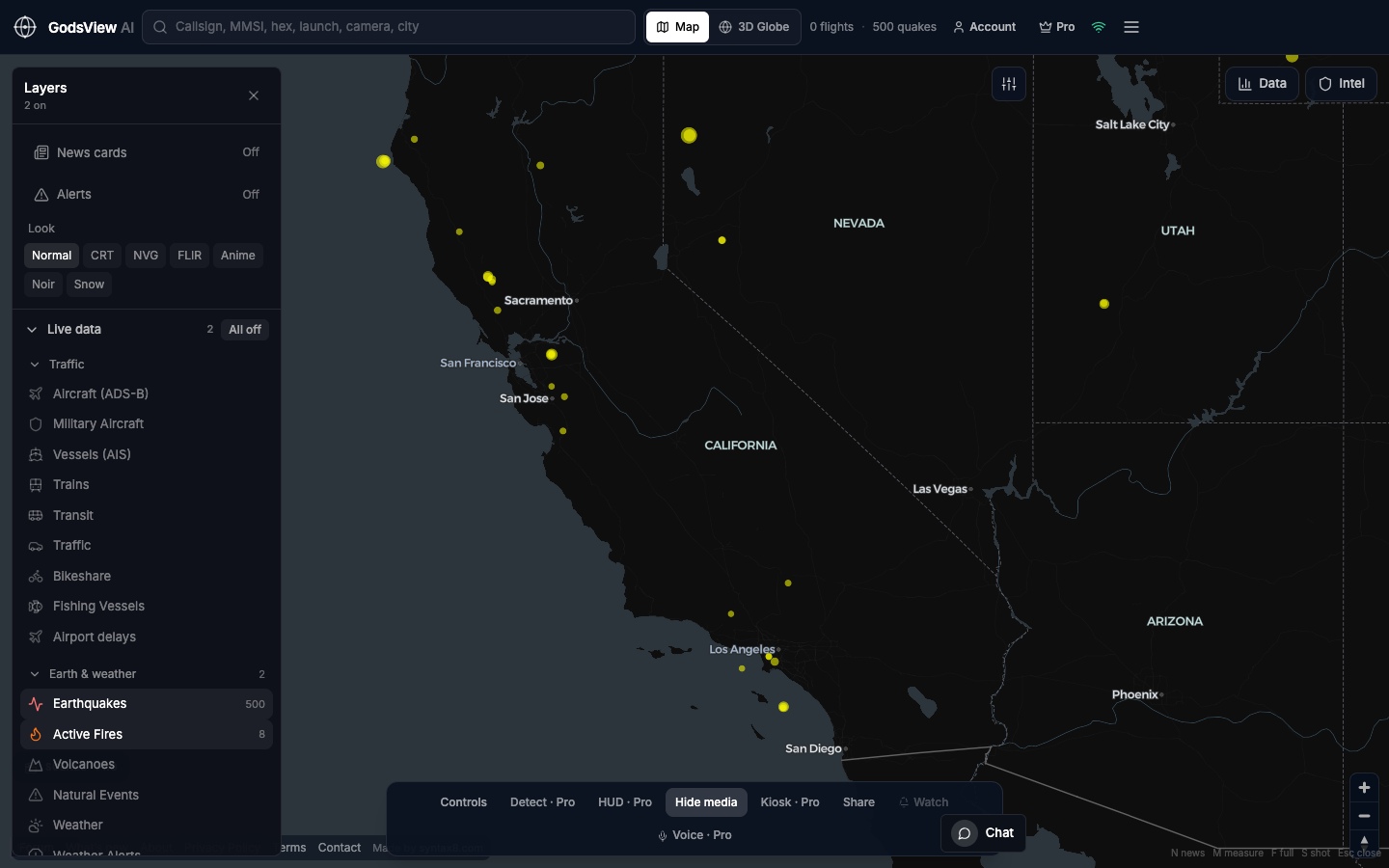
That is the core workflow. Operational use usually means fewer layers, not more.
Optional email list: subscribe from the page in a browser, or open an account.