Tutorial
Getting Started With the GodsView Live Map
Open the map, find something, click it, share it. That covers most of what people do on GodsView, and it takes five minutes to learn.
Key takeaways
- You need nothing to start: no account, no app, no install.
- The search box finds flights, airports, ships on the map and any town or city.
- Click anything on the map to open its card, and press Share to copy a link to the exact view.
This is the first tutorial for a reason: everything else builds on it. By the end you'll know how to move around the map, find a specific flight or place, read what you click on, and send someone a link to exactly what you're looking at.
Step 1: Open the map
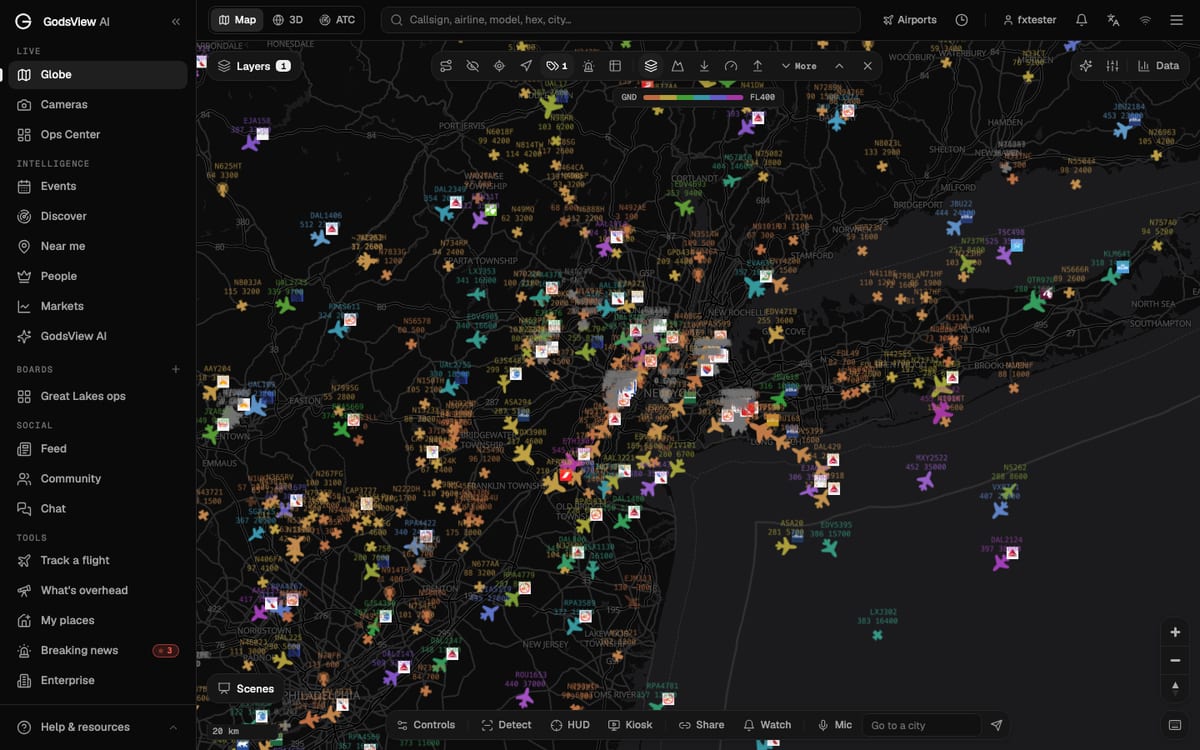
Go to the live globe. You land on a flat world map with live aircraft on it. That's the Aircraft (ADS-B) layer, the only one switched on for a new visitor. Each plane icon points the way it is flying and is colored by altitude: the bar at the top runs from GND (on the ground) to FL400 (40,000 ft).
Drag to move, scroll or pinch to zoom. The + and − buttons at the bottom right do the same, and the compass button below them turns the map back to north.
Zoom in on a city and the labels appear: callsign on top, then speed and altitude.
Step 2: Search for a flight, airport or place
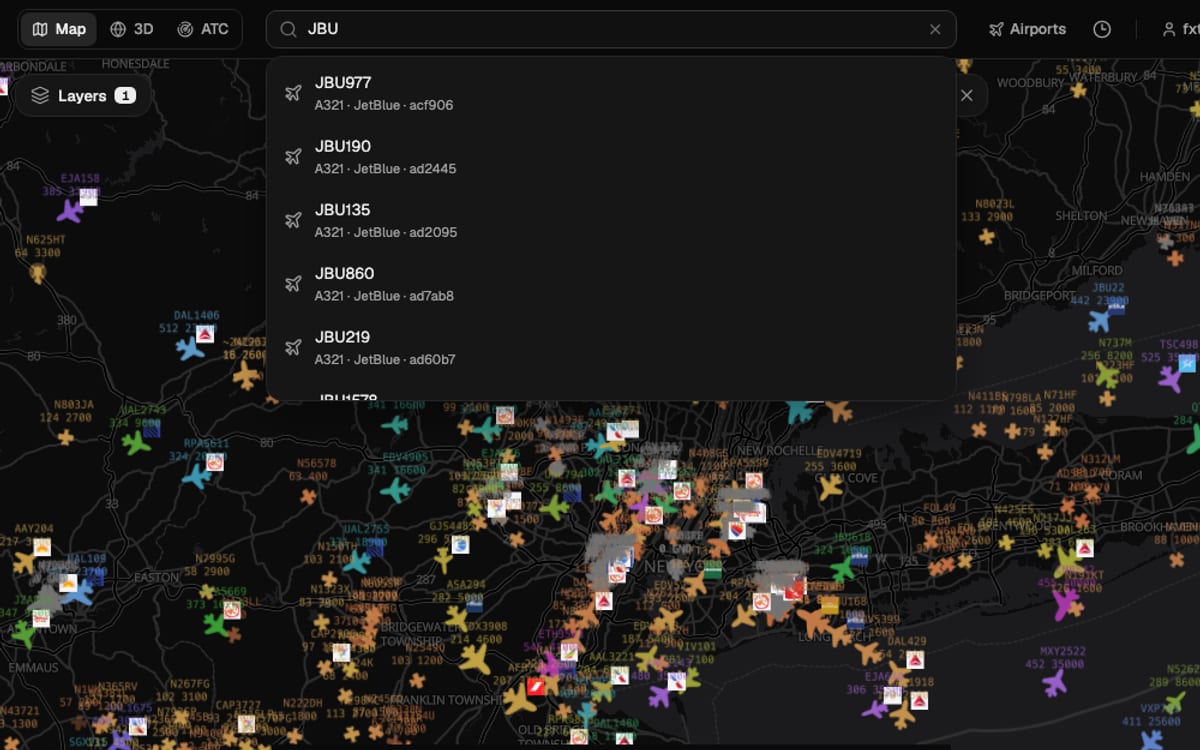
The search box at the top says "Callsign, airline, model, hex, city…". Type any of those:
- A callsign like JBU22 or the start of one, like JBU, to list every JetBlue flight in the air.
- An airport code like JFK or EGLL.
- A town, city or address.
- A ship's name or MMSI, if the Vessels layer is on.
Pick a result and the map flies there.
If nothing comes up, the box tells you so. Coverage depends on volunteer receivers, so a flight that's on another tracker may not be on ours, and the other way round.
Step 3: Click anything for details
Click a plane and a card opens on the right. For JetBlue 22 it shows the photo, the route (DJT to BOS), the airline, flight status, callsign, hex code, registration and type, then altitude, speed and direction further down.
The tabs along the top of the card are Info, Route (or Track), History and News. At the bottom are Track in 3D, Ride along in 3D, Watch and Follow. Follow keeps the plane centered while it flies. The 3D buttons need GodsView Plus or Pro; the flight tracking tutorial covers them.
Everything else on the map works the same way. Click an earthquake, a ship, a storm or a camera and you get its card.
Step 4: Open the data panel
The Data button at the top right opens a side panel. Its first line counts what's on the map right now, for example "5.5k aircraft · 0 vessels · 0 fires", and its tabs list aircraft, cameras, news, alerts and more. When you click something on the map, its details also show here.
The expand icon in the panel's header opens the Global Data View, a full-screen set of tables: aircraft, vessels, earthquakes, weather and so on.
Step 5: Share exactly what you see
Press Share in the bar at the bottom of the map. It copies a link and changes to Copied. Whoever opens it sees the same spot, the same zoom and the same layers, with the same flight or ship selected.
That's how I send people "look at this": no screenshot, and the map they get is live.
Where to go next
- Turn on more data: layers and filters.
- Follow one flight properly: track a flight in 3D.
- Get told when something happens near you: set alerts for a place.
If you want to know where all this data comes from, the methodology page lists every source.
Frequently asked questions
Do I need an account to use the map?
No. The map, search, flight and ship layers work without signing in. An account lets you save things, and a paid plan adds alerts, 3D views and extra layers.
Why is a flight I know about not on the map?
Live positions come from ADS-B receivers run by volunteers. Where nobody is listening, or the aircraft does not broadcast, it will not appear.