Tutorial
Set Alerts for a Place: Watch Areas and My Places
Two ways to be told when something happens somewhere you care about: the quick one for homes and family, and the flexible one for any shape on the map.
Key takeaways
- My places watches 50 km around a town for earthquakes, storms, floods, fires and bad air. It takes under a minute.
- A watch area can be a circle, a shape, the current view or a city, with your own choice of rules.
- Alerts go to the bell, and optionally to browser push and email, with quiet hours and a test button.
Alerts need a paid plan (GodsView Plus or Pro) and an account. Checking a place for recent events is free, so you can try step 1 before you decide.
Step 1: Add a place on My places
Open My places. Under Add a place, press Use my location, or type a town into the box and press Add.
GodsView checks the last three days around it straight away. For Pasadena it says "All clear near Pasadena, California in the last 3 days" and lists what it checked: earthquakes M4.5+, US severe weather warnings, disaster alerts, tropical cyclones, wildfires, floods, fire hotspots and air quality.
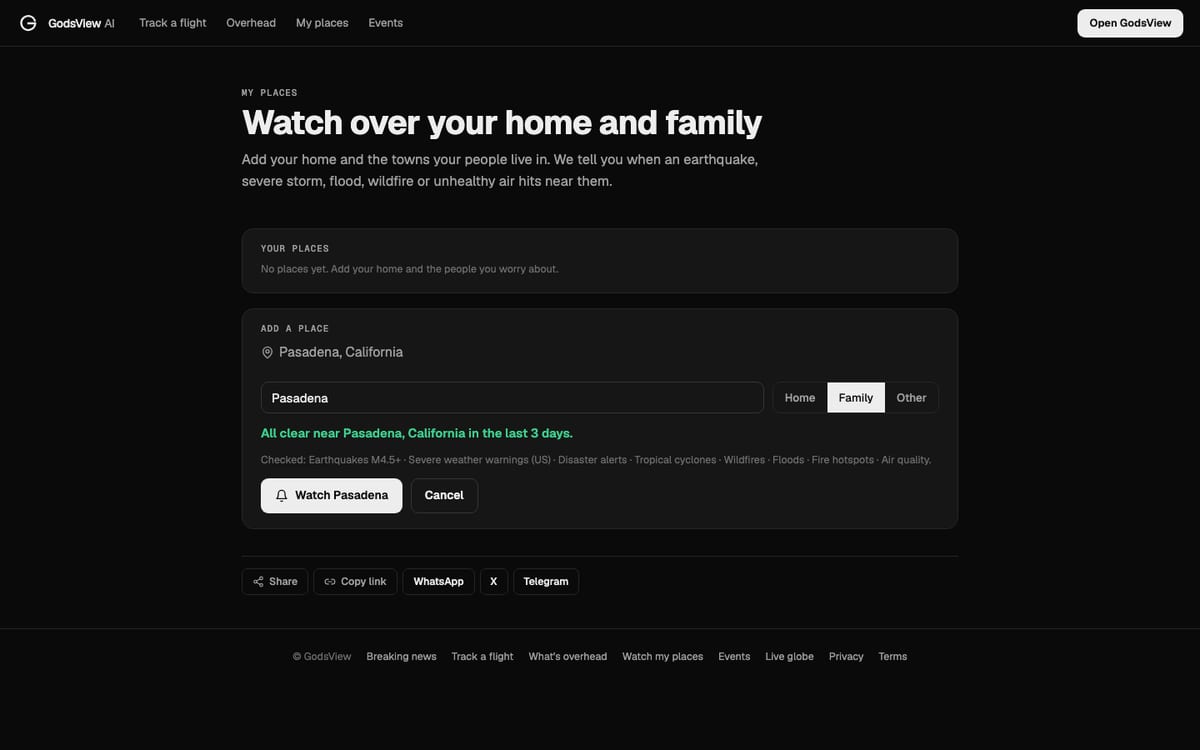
Name the place, pick Home, Family or Other, and press Watch followed by the name. Tick Notify me in this browser if you want pop-ups on this computer. The place now has a 50 km watch with in-app, push and email alerts on.
Step 2: Or draw a watch area on the map
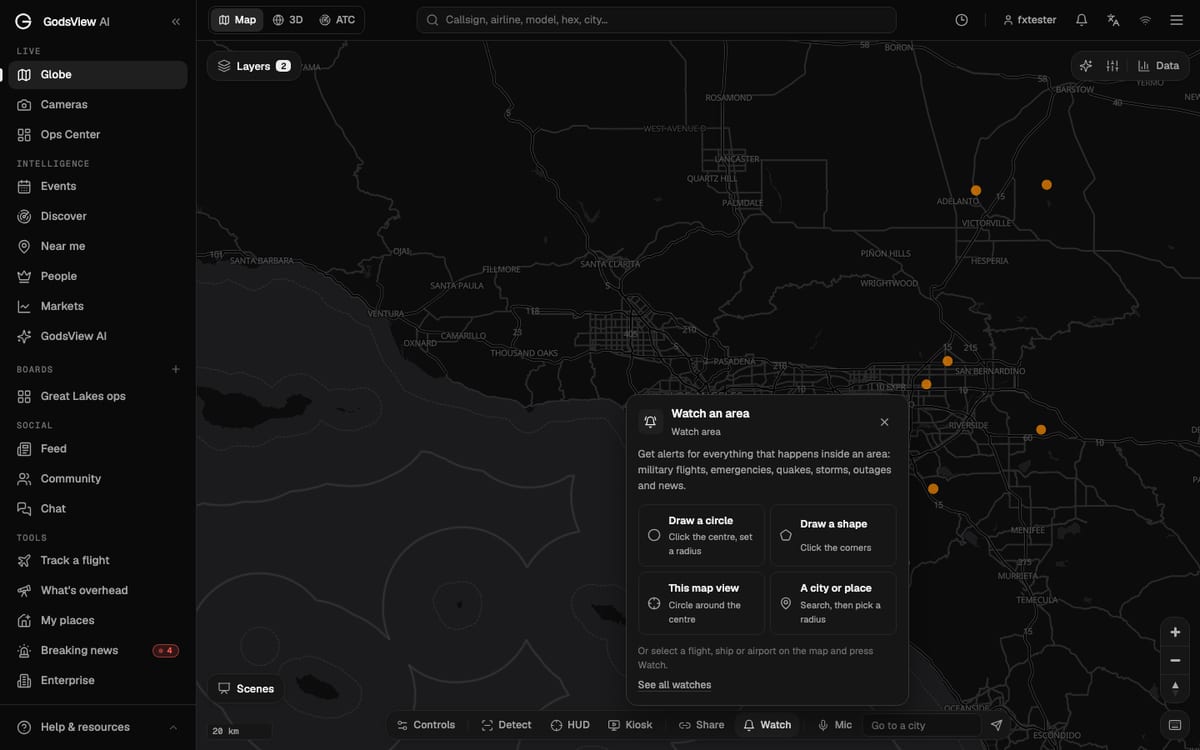
For anything that isn't a town, use the map. On the live map, press Watch in the bottom bar with nothing selected. You get four choices:
- Draw a circle: click the center, then set the radius.
- Draw a shape: click the corners of any outline, such as a coastline or a valley.
- This map view: a circle around the middle of what's on screen.
- A city or place: search for it, then pick a radius.
Step 3: Set the size, name and rules
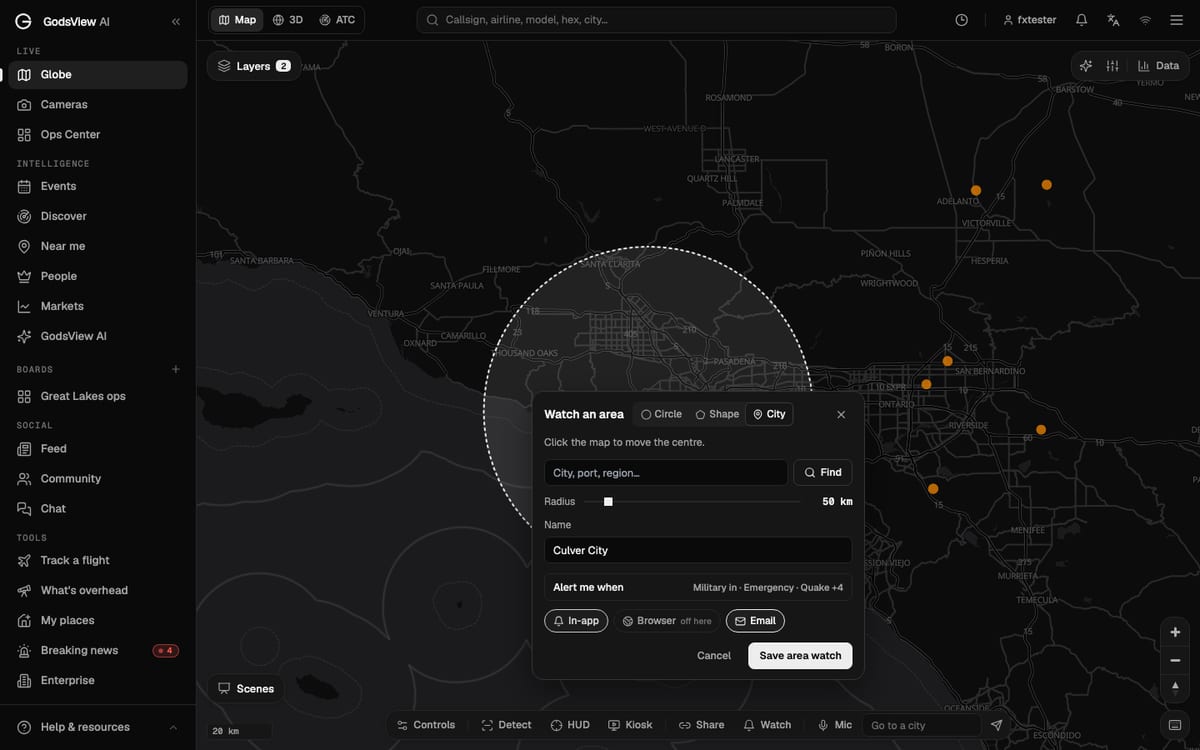
The drawing panel has tabs for Circle, Shape and City. Set the Radius with the slider (1 to 500 km), and give the area a Name you'll recognize in an alert.
Open Alert me when to choose the rules. The summary shows what's on, for example "Military in · Emergency · Quake +4". The full list:
| Group | Rules |
|---|---|
| Aircraft | Military aircraft enters, Emergency squawk inside, These aircraft enter or leave |
| Ships | Vessel enters (any vessel, or specific MMSIs) |
| Hazards | Earthquake (M4.5+ by default), Active fire hotspots, Severe weather warning (US), Disaster alert (GDACS), Tropical cyclone, Wildfire, Volcano and Flood alerts |
| Other | Unhealthy air (PM2.5), Internet outage in the country, Mentioned in the news |
Step 4: Choose how you're told, then save
Pick the delivery chips: In-app is always on, Browser asks for notification permission the first time, Email sends high-severity alerts at once and the rest in your digest. Press Save area watch.
Step 5: Watch a flight, ship or airport instead
Select a flight, ship or airport on the map and press Watch. You get rules for that one thing: for an aircraft, "Shows up on the live map", "Takes off", "Lands", "Emergency squawk" and "Signal lost for 15 min"; for a ship, "Arrives or moors" and "Gets underway". Press Start watching.
Step 6: Manage everything in Watches & alerts
Click the bell at the top, then the gear icon, to open Watches & alerts. It has three tabs:
- Watches: every watch you have, with pause, edit, delete and Show on map. You can also add a topic or ticker here, or pick worldwide events such as Earthquakes M6+ worldwide or Tropical cyclones.
- Inbox: past alerts.
- Delivery: browser notifications, email and digest (off, hourly or daily), Quiet hours (critical alerts still come through), Pause all alerts and Send test.
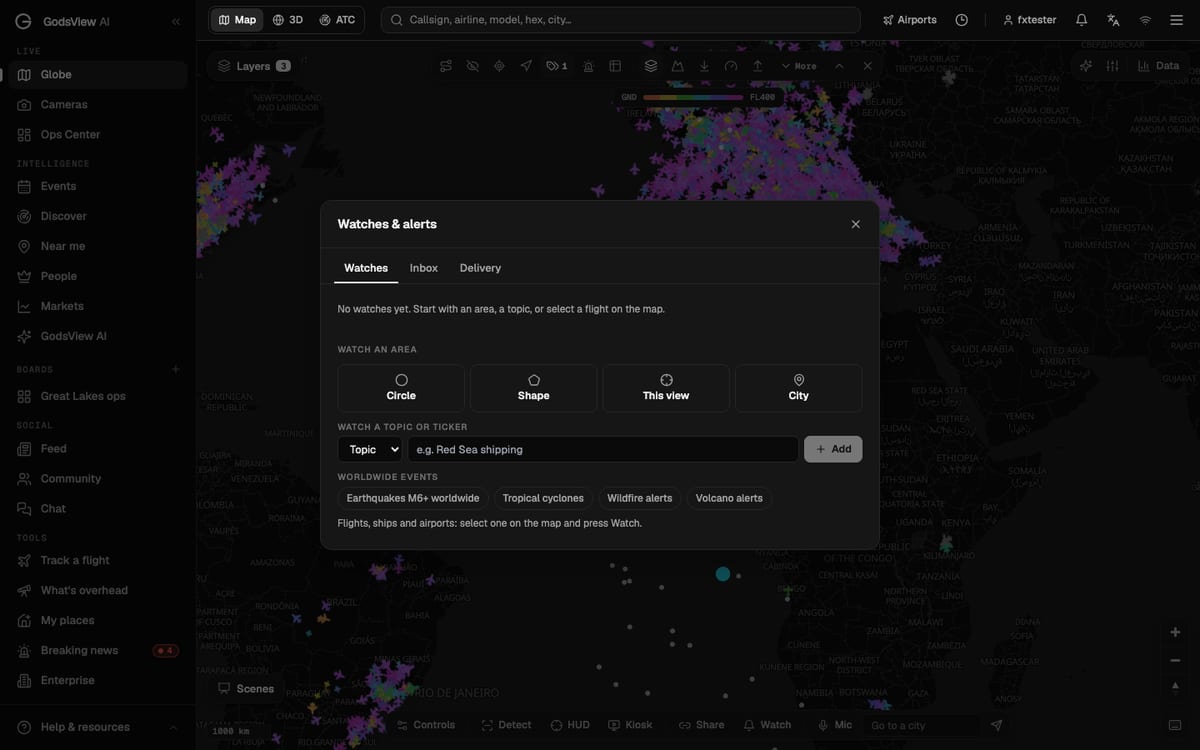
Press Send test once. If the test reaches you, real alerts will too. You can keep up to 50 watches.
For the reasoning behind the defaults and tips on cutting noise, read how to get disaster alerts near home.
Frequently asked questions
Do alerts cost money?
Saving watches and receiving alerts needs GodsView Plus or Pro. Checking a place for recent events on My places is free.
How many watches can I have?
Up to 50, counting places, areas, flights, ships, airports, topics and tickers.
Can I stop alerts at night?
Yes. Set quiet hours on the Delivery tab of Watches & alerts. Critical alerts still come through.