Tutorial
Layers and Filters: Show Only What You Need
GodsView has more than eighty layers. The map is only useful when two or three of them are on. Here is how to pick them and filter what they show.
Key takeaways
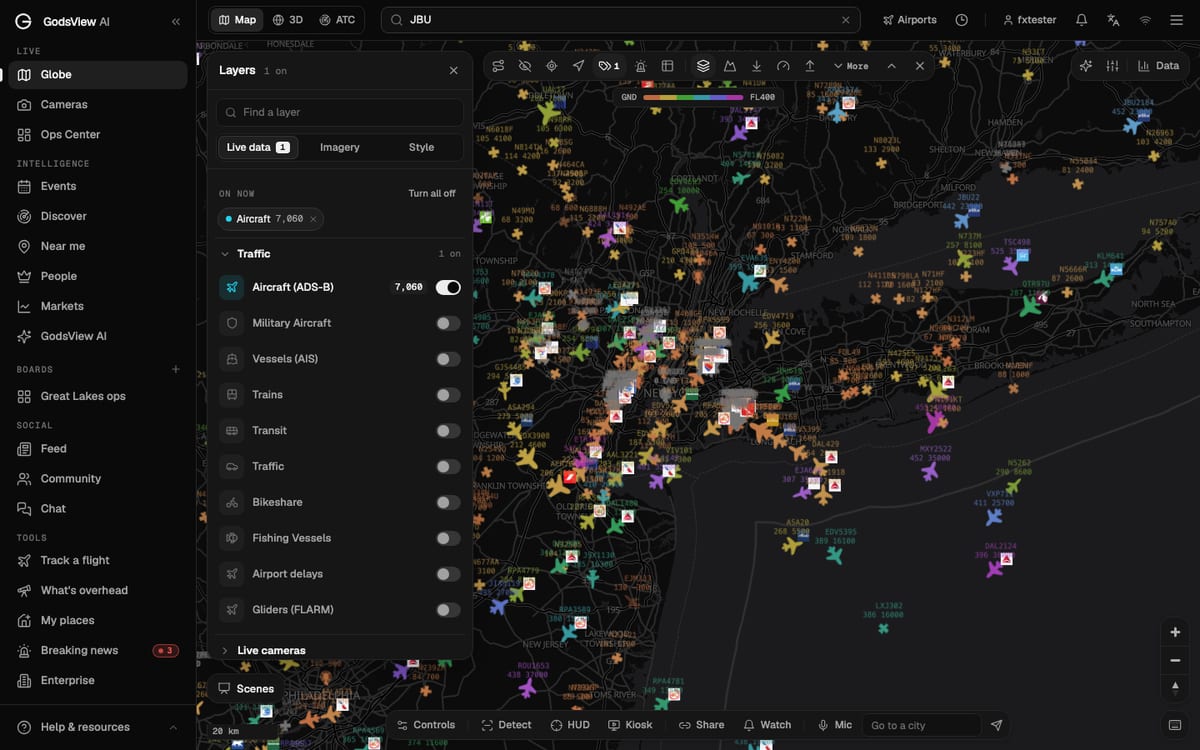
- Open Layers, type a word into Find a layer, and flip the switch. The On now row shows what is switched on, with Turn all off to start again.
- The aircraft toolbar filters by altitude band, airline, emergency squawk and data source.
- Imagery switches the base map to NASA satellite pictures for a chosen date; Style changes the map look.
The most common mistake on a live map is turning everything on. Ships, planes, fires, quakes and news on one screen at world zoom is a mess of dots. Pick the two or three layers that answer your question, and filter those.
Step 1: Open the Layers panel
Click Layers at the top left of the map. The number next to it is how many layers are on. The panel has three tabs: Live data, Imagery and Style.
Under Live data, the On now row lists what's switched on, with a count for each. Turn all off clears everything so you can start fresh.
Step 2: Find a layer and switch it on
Layers are grouped: Traffic, Live cameras, Weather, Earth and environment, Space, Places and infrastructure, Aviation charts, Signals and media, and Other. You can open a group and scroll, but it's quicker to type into Find a layer: "quake", "fire", "storm", "ship", "jamming".
Flip the switch next to a layer to turn it on. Some layers carry a Plus or Pro tag. Plus covers things like military aircraft, live cameras, weather radar and ports; Pro adds analyst layers such as military bases, frontlines and undersea cables. Flights, ships, earthquakes, fires and storm tracks are free.
A few combinations I use all the time:
| Question | Layers to turn on |
|---|---|
| What's happening at sea near this port? | Vessels (AIS), World ports |
| Is this smoke a wildfire? | Active fires, Satellite clouds |
| Is the storm going to hit land? | Storm tracks, Satellite clouds |
| Why are planes avoiding this area? | Aircraft (ADS-B), GPS jamming |
Step 3: Filter the aircraft
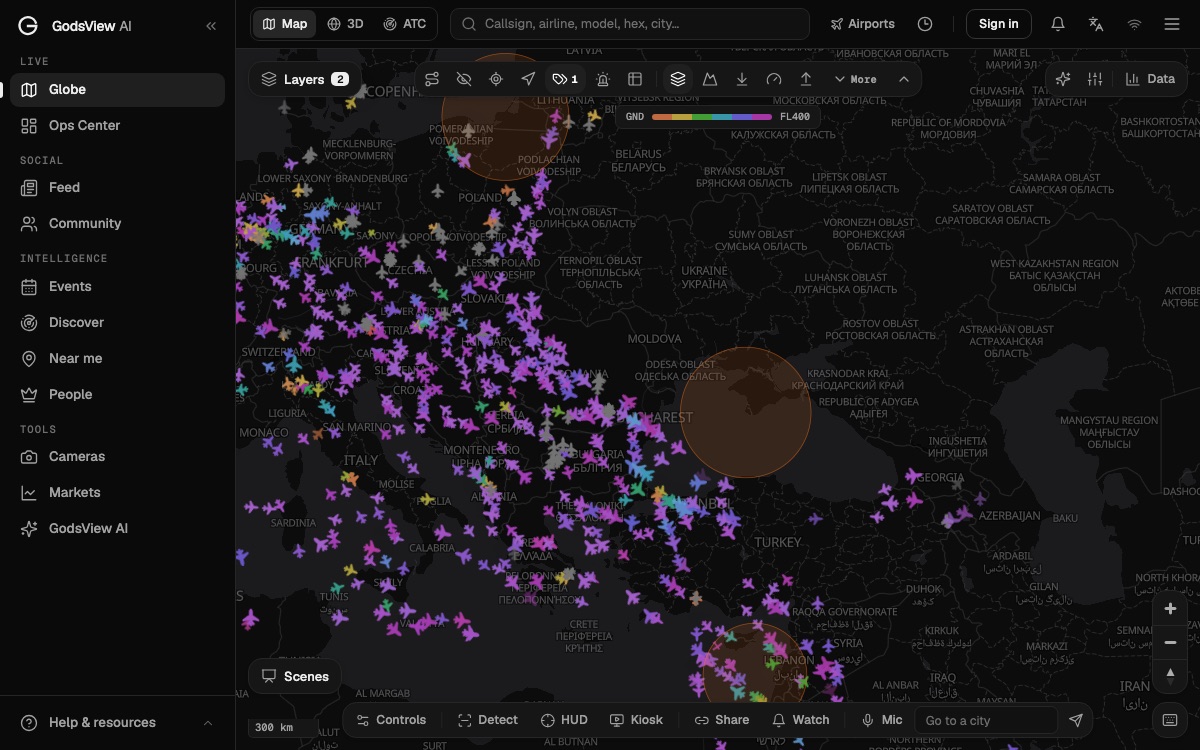
When the aircraft layer is on, a toolbar appears at the top of the map. Its icons have tooltips; the ones worth learning first:
- Altitude: show only aircraft on the ground, below 10,000 ft, between 10,000 and 28,000 ft, or at or above 28,000 ft. Below 10,000 ft is the one to use near an airport.
- Emergency: show only aircraft squawking 7500, 7600 or 7700 (hijack, radio failure, general emergency).
- Airline: filter the map to one carrier.
- Table: a sortable list of every aircraft on screen.
- Tracks and Isolate: show flight trails, or hide every aircraft except the one you selected.
Next to them are source chips: ADS-B, MLAT, TIS-B and OTH filter by how a position was received, and MIL, INT, PIA and LADD filter by type. MIL shows only military aircraft (it switches on the Military layer), PIA shows aircraft using a privacy address, and LADD shows aircraft whose owners asked to be kept off public feeds. If you're curious why those exist, read military aircraft tracking explained.
Step 4: Change the imagery or style
The Imagery tab replaces the dark base map with NASA satellite pictures. Pick a date with the date picker or the presets (Today, −7d, −30d, −90d, −1y), and use Compare two dates to put two days side by side. It's how you see a burn scar or a flood after the fact. Imagery needs Plus or Pro.
The Style tab changes the map look and has switches for News cards and Alerts on the map.
Step 5: Save the view with Share
When the map shows exactly what you want, press Share at the bottom. The link keeps the layers, the position and any selected flight or ship. I keep a few of these as bookmarks: "Strait of Hormuz ships", "JFK below 10,000 ft".
Next: track a flight in 3D or track a ship.
Frequently asked questions
Which GodsView layers are free?
Aircraft, vessels, earthquakes, active fires, storm tracks, satellite clouds and many more are free. Layers tagged Plus or Pro in the panel need that plan.
How do I see only military aircraft?
Turn on Military Aircraft in the Traffic group (Plus), or use the MIL source chip in the aircraft toolbar.