Tutorial
Track a Flight, Then Follow It in 3D
Someone you love is on United 135 from Zurich. Here is how to see where the plane is, when it lands, and, if you like, ride behind it all the way down to the runway.
Key takeaways
- Type a flight number like UA135 on Track a flight to get status, gates, delay, altitude, distance to go and landing time.
- Share the page with whoever is waiting at the airport; the link stays live.
- On the map, Track in 3D puts a chase camera behind the aircraft, with Tower and Runway views near airports. Ride along puts you in the cockpit.
I'll use a real flight from the afternoon I wrote this: United 135, a Boeing 777-200 from Zurich to Newark. You can follow along with any flight that's in the air when you read this.
Step 1: Look up the flight number
Open Track a flight. The box says "Flight number, e.g. BA117 or EK203". Type the airline code and number the way it's printed on the ticket, UA135, and press Track.
Step 2: Read the flight page
The page answers the questions people actually ask:
- Status at the top right: here "En route · 79 min late".
- Departure and arrival: airports, scheduled times crossed out next to the real or estimated ones, terminal, gate and baggage belt where the airline publishes them.
- Progress: 99% here, with altitude 5,550 ft, speed 293 kt (543 km/h), 37 km to go and "Lands in 10 min".
- A small map with the route flown so far.
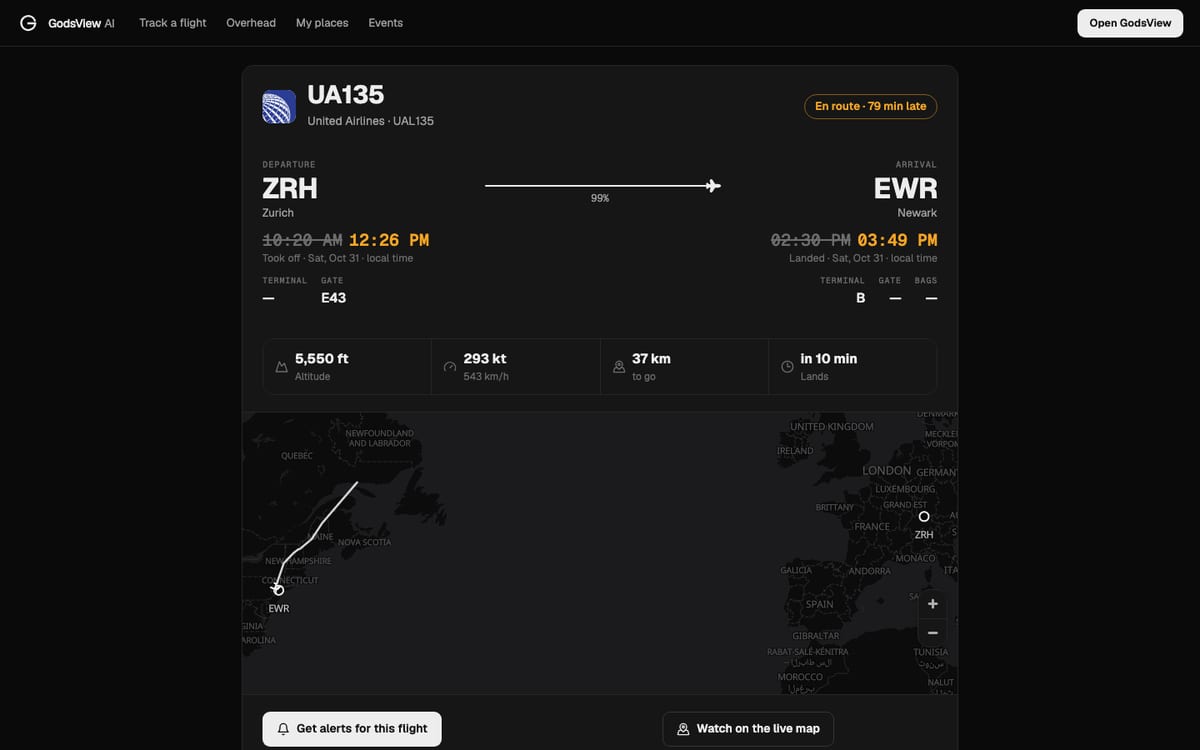
Times are shown in each airport's local time. Under the map there's an Aircraft section with the type, registration and Mode-S code.
Step 3: Share it or get alerts
Use the share row (Share, Copy link, WhatsApp, X, Telegram) to send the page to whoever is picking the passenger up. They see the same live page, no account needed.
Get alerts for this flight tells you about gate changes, delays, take-off and landing. You need to be signed in, and alerts need a paid plan.
Step 4: Open it on the live map
Press Watch on the live map. The map opens with the aircraft selected and its card on the right: photo, route, airline, callsign, hex code, registration, type, then altitude, speed and direction.
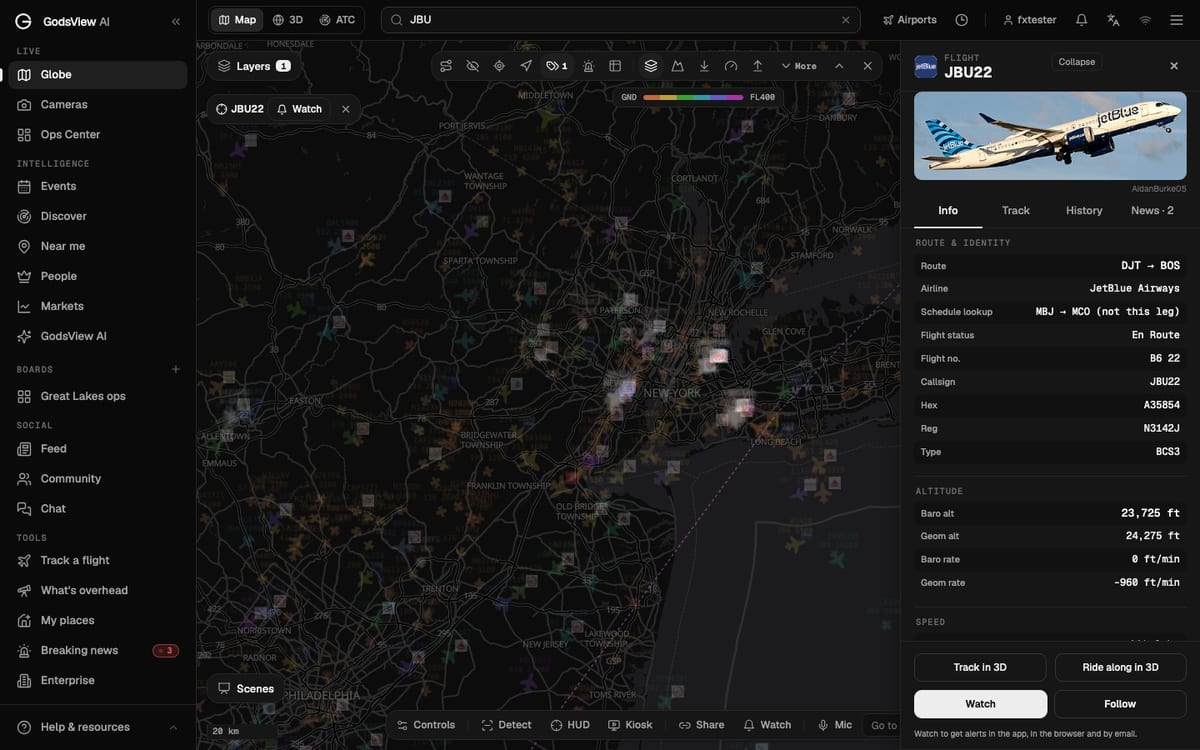
Follow keeps the plane centered on the flat map. That's enough for most people. If you want to see it fly, go to step 5.
Step 5: Track it in 3D
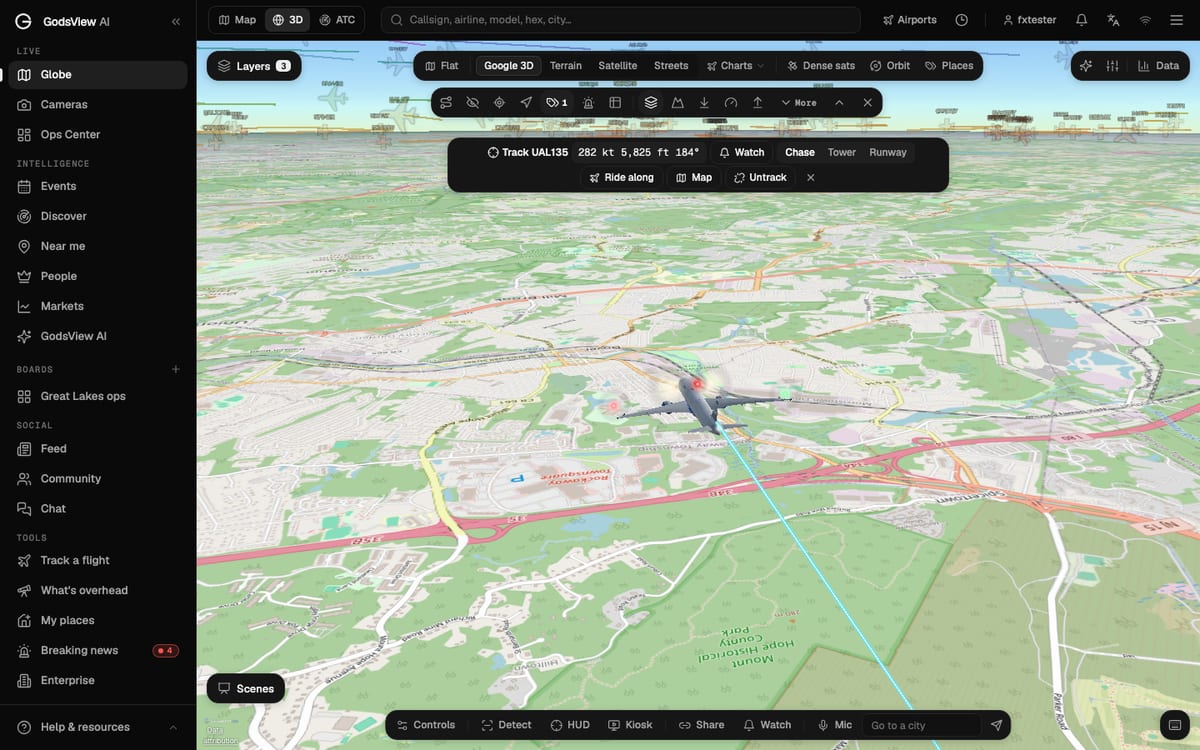
Press Track in 3D. The map switches to the 3D view and puts the camera behind the aircraft. 3D is heavy work for a browser, so on an older computer give it a few seconds to load the scenery.
A bar at the top shows the flight: "Track UAL135 · 282 kt · 5,825 ft · 184°". Next to it are the camera choices:
| Camera | What you see | When to use it |
|---|---|---|
| Chase | Behind and above the aircraft, turning with it | Cruise and approach; the default |
| Tower | A fixed tower camera with a zoom lens, following the aircraft | Arrivals and departures |
| Runway | A plane spotter standing beside the runway | Landings and take-offs |
Ride along switches to a cockpit view from the aircraft itself. Map goes back to the flat map, and Untrack lets the camera go. Esc also returns to the map.
The 3D views need GodsView Plus or Pro. The flight page, the map card and Follow are free.
Step 6: Know what the 3D view is showing
The aircraft in 3D is placed from its last ADS-B position and moved forward smoothly between updates. Near the ground, GodsView uses the airport's runways and taxiways so landings line up with the real runway. It is a faithful picture of where the aircraft is reported to be, not a video. When the reports stop, for example over the ocean far from receivers, the aircraft coasts briefly and then waits for the next fix.
If you want to know why positions sometimes lag or vanish, read how ADS-B flight tracking works. For the background on finding flights by callsign, hex or registration, see how to track a flight.
Frequently asked questions
Can I track a flight without an account?
Yes. The flight page, the map card and Follow work without signing in. Alerts need an account and a paid plan.
What is the chase camera?
It is a 3D camera that sits behind the aircraft and turns with it, so you see the plane against the terrain below. Tower and Runway are alternative views near airports.
Why is my flight not found?
Check the airline code and number, and whether the flight has departed. Aircraft only appear on the live map while a receiver can hear them.