Tutorial
Use GodsView Fusion: Ranked Alerts for Your Board
Fusion reads every source GodsView tracks, keeps what matters to your board, merges reports about the same event and ranks the result. You read one feed instead of twenty layers.
Key takeaways
- Fusion is the first tab on every board. Its feed is ranked Flash, Urgent, Alert and Info, split into For this board and Worldwide.
- Rules & alerts adds detection rules (ships meeting at sea, AIS gaps, holding patterns, outages and more) and count rules.
- Board alerts run every three minutes, by app, push and email, with an optional daily brief at 7:00.
Fusion lives inside Boards, so create a board first. Fusion's rules and briefs need GodsView Pro; anyone on the board can read the feed.
Step 1: Open the Fusion tab
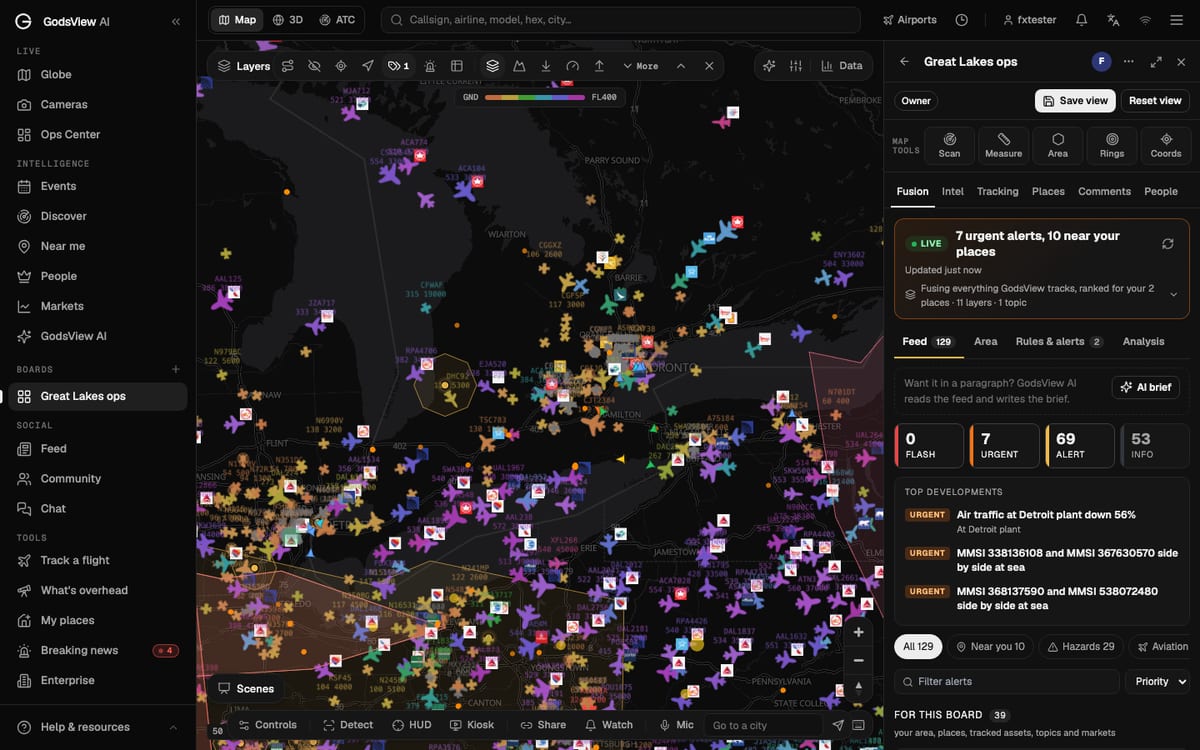
Open your board from the sidebar. Fusion is the first tab. At the top is a headline for the board right now. On our Great Lakes board it reads "7 urgent alerts, 10 near your places", with a Live marker, the time of the last update and a refresh button.
The line under it ("Fusing everything GodsView tracks, ranked for your 2 places · 11 layers · 1 topic") opens to show which sources are in, what gets ranked first, and which of your layers count.
Step 2: Read the feed
Fusion has four sub-tabs: Feed, Area, Rules & alerts and Analysis. In Feed:
- The four boxes count alerts by priority: Flash, Urgent, Alert and Info.
- Top developments lists the few things most worth reading now. On our board: "Air traffic at Detroit plant down 56%" and two pairs of ships "side by side at sea".
- Chips like All, Near you and Hazards narrow the feed by theme, and Filter alerts searches it. Sort by Priority or Latest.
- The feed is split into For this board (your area, places, tracked assets, topics) and Worldwide.
Each alert shows its sources (ADS-B, AIS, USGS, NWS, NASA FIRMS, GDACS, news and others) and an incident score. Fused means several reports were merged into one event. Open an alert and you can Share to board to post it for the rest of the team, or Mute to hide alerts of that kind on this board.
Want a paragraph instead of a list? AI brief reads the feed and writes one.
Step 3: Check the Area view
Area compares the traffic picture in your board's area with its usual level. It needs a saved view or places, and for a new board it starts with "Learning this area's normal traffic…". After that it is how Fusion knows that air traffic near the Detroit plant is down 56%.
Step 4: Add rules
Open Rules & alerts. Your current rules are at the top, each with a checkbox to switch it on or off and a delete button.
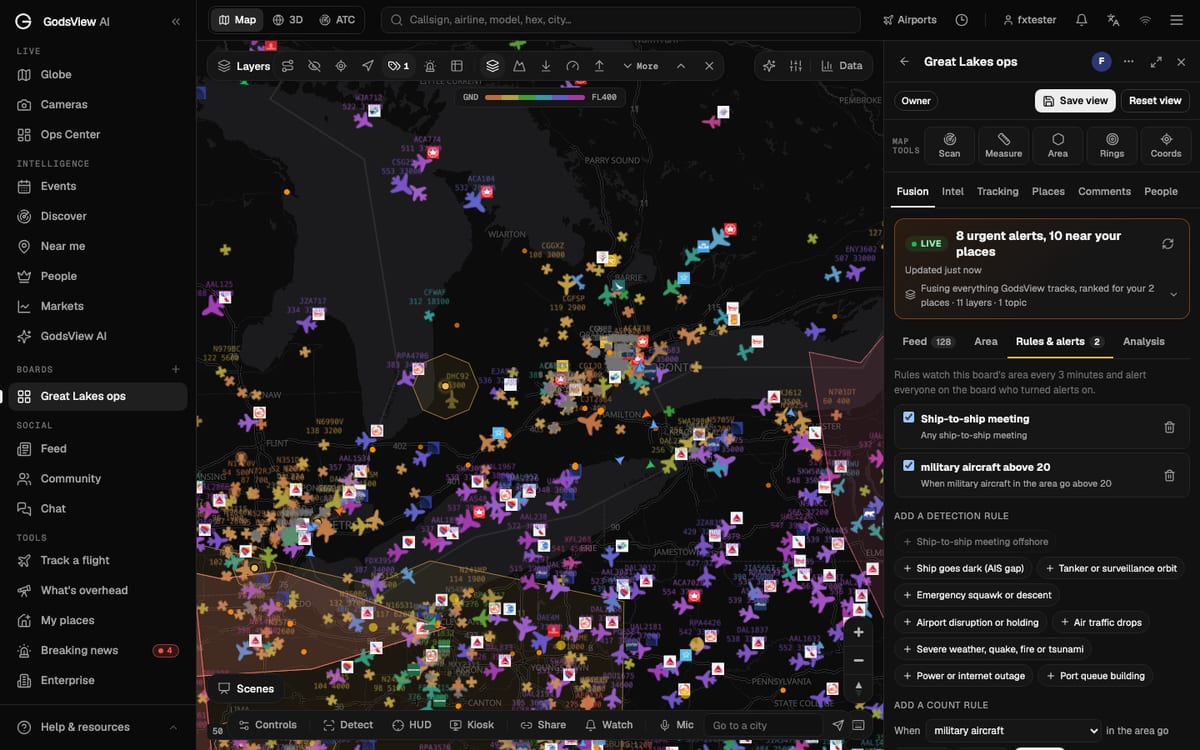
Add a detection rule has ready-made templates:
| Template | What it catches |
|---|---|
| Ship-to-ship meeting offshore | Two vessels stopped side by side away from port |
| Ship goes dark (AIS gap) | A vessel that stops reporting |
| Tanker or surveillance orbit | Aircraft flying repeated loops |
| Emergency squawk or descent | 7500/7600/7700 squawks and steep descents |
| Airport disruption or holding | Holding patterns and disrupted arrivals |
| Air traffic drops | Traffic well below the area's normal |
| Severe weather, quake, fire or tsunami | Hazards in the area |
| Power or internet outage | Outages affecting the area |
| Port queue building | Ships piling up outside a port |
Add a count rule is for thresholds: "When military aircraft in the area go above 20", then Add.
Step 5: Turn on alerts and the daily brief
Further down, under Alerts and daily brief:
- Tick Alert me about this board. Fusion then checks the area every three minutes, day and night.
- Choose which alert types you want.
- Pick delivery: App and push, and Email for high and critical.
- Tick Daily board brief by email for a summary of incidents, detections and what changed in the last 24 hours, every morning at 7:00 your time.
Each member turns alerts on for themselves, so nobody gets mail they didn't ask for.
Step 6: Explore the Analysis tab
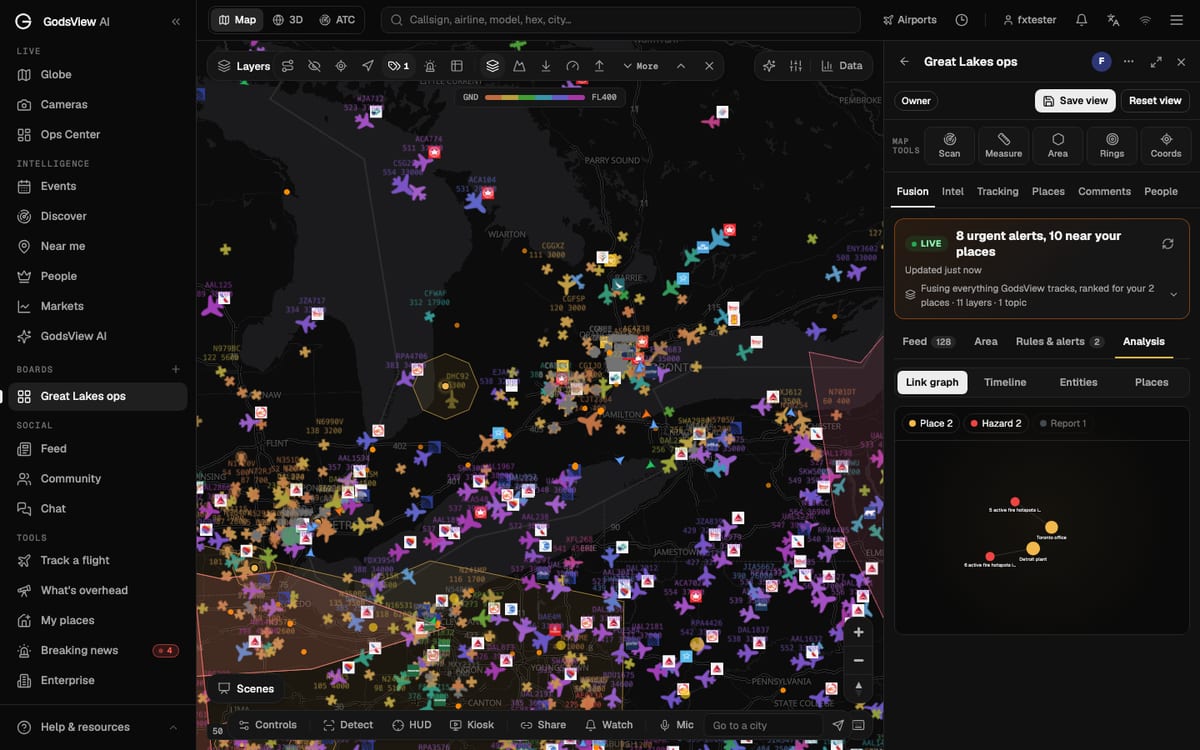
Analysis has four views: Link graph, Timeline, Entities and Places. The link graph connects your places to the hazards and reports near them; on our board it ties the Detroit plant and the Toronto office to nearby fire hotspots. Places gives each place a risk score.
Getting the most out of it
Start with two or three rules, run them for a few days, and mute what's noisy. Fusion is only as focused as the board's area, places and tracked assets, so a board over a whole continent will be loud. Several small boards ("Port of Antwerp", "Detroit plant") usually beat one big one.
For how the Ops Center scores incidents worldwide, see the Ops Center guide.
Frequently asked questions
Do I need Pro for Fusion?
Rules, board alerts, AI briefs and the daily brief need GodsView Pro. Members of a board on any plan can read its Fusion feed.
How often does Fusion check for new alerts?
Every three minutes for boards with alerts turned on.
What does Fused mean on an alert?
Fusion merged several reports or signals about the same event into one alert, so you read it once.