Tutorial
Create a Board and Invite Your Team
A Board is a live map your whole team opens and sees the same way: the same view, the same places, the same tracked assets, the same alerts. Here is how to set one up from scratch.
Key takeaways
- Create a board from New board in the sidebar. Start from the current map to keep your view, layers and drawings.
- Add places with a watch radius, track flights, ships and airports, and keep measurements and drawings on the board.
- Invite people by email as Can edit or Can view and comment. Invite links last 14 days.
Creating boards needs GodsView Pro. The people you invite can be on any plan, including free, and can view and comment.
Step 1: Set up the map first
Boards start from what's on your screen, so set the map up before you create one. Go to the area you care about, turn on the layers you'll want (the layers tutorial covers this) and zoom to a sensible level. For this tutorial I made a board called "Great Lakes ops" for a company with sites in Detroit and Toronto.
Step 2: Create the board
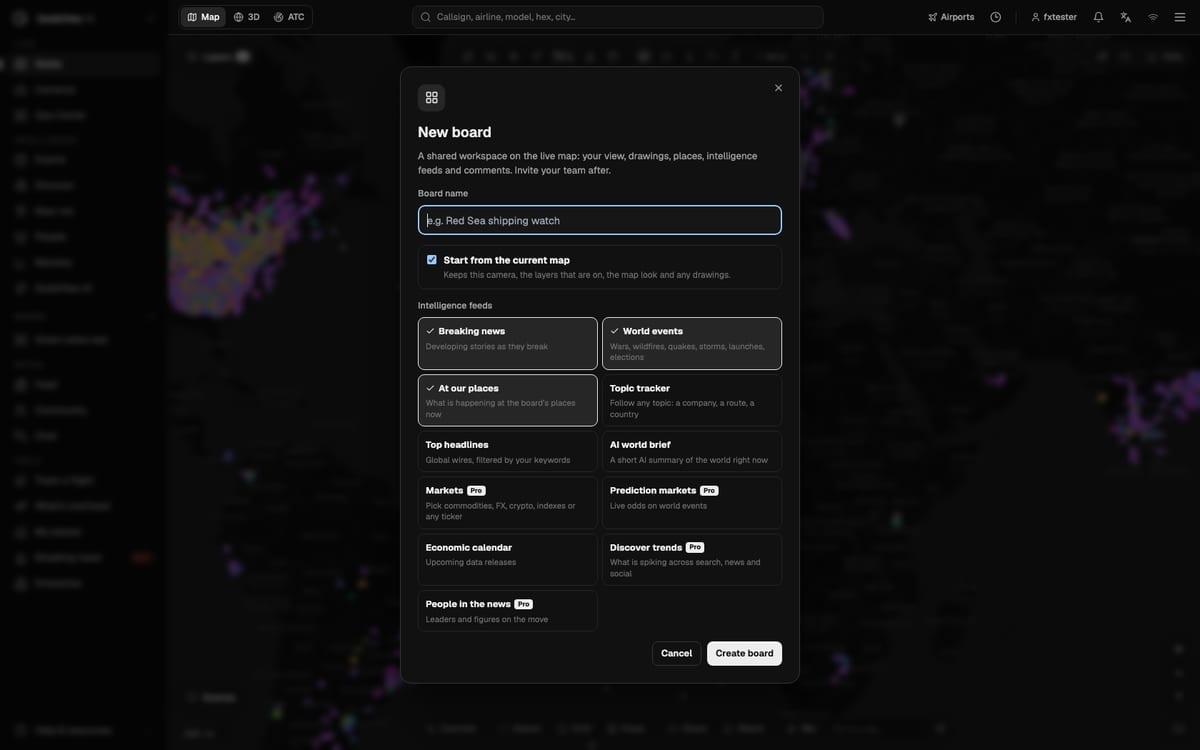
Click New board in the sidebar (the + next to Boards). The dialog asks for:
- Board name, at least two characters. Name it for the job: "Red Sea shipping watch", "Gulf Coast hurricane desk".
- Start from the current map. Leave it ticked to keep the camera, the layers, the map look and any drawings.
- Intelligence feeds. Breaking news, World events and At our places are on by default. You can add Topic tracker, Top headlines, AI world brief and Economic calendar, and on Pro, Markets, Prediction markets, Discover trends and People in the news.
Press Create board. It opens on the map with its panel on the right and appears under Boards in the sidebar.
Step 3: Learn the board panel
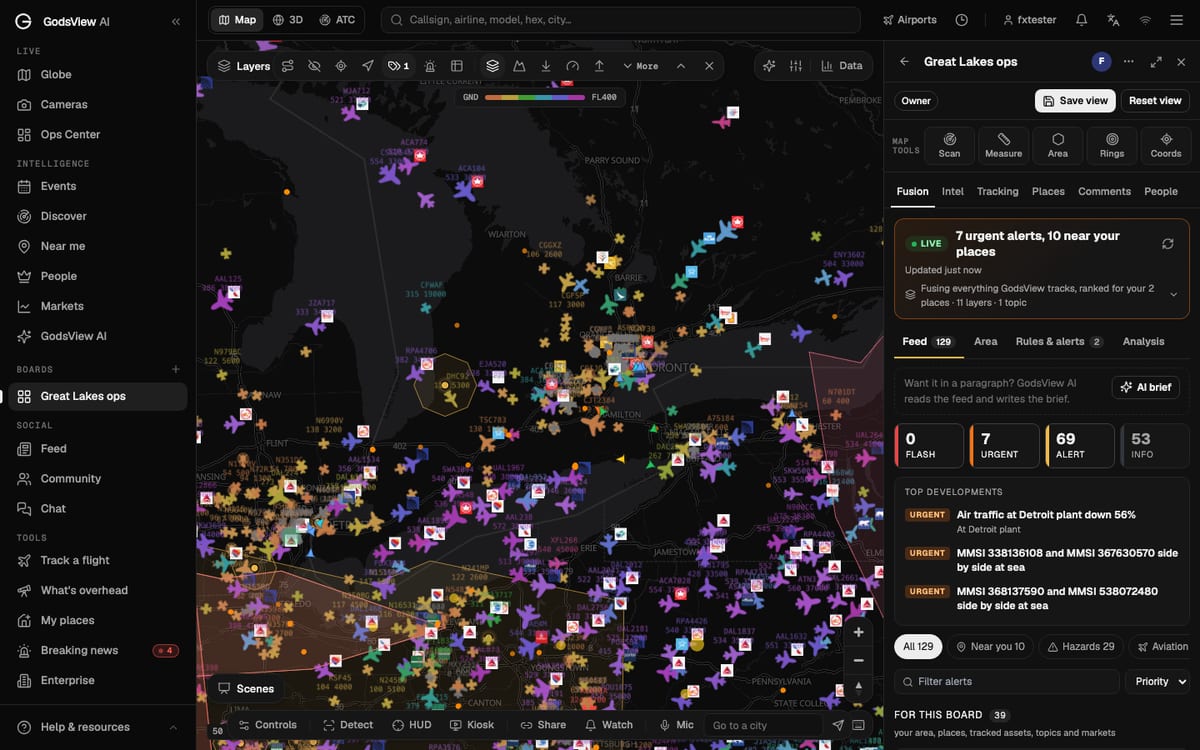
The top of the panel shows your role (Owner, Editor, or View and comment), Save view and Reset view. Save view stores the current map view, layers and drawings on the board, so everyone gets the same picture. Reset view brings you back to it after you've wandered off.
Under that are Map tools (Scan, Measure, Area, Rings, Coords) and the tabs: Fusion, Intel, Tracking, Places, Comments and People.
Step 4: Add places, tracking and notes
- Places: press "Add a place: click it on the map", click the spot, name it and set a Watch radius in km. Our board has "Detroit plant" and "Toronto office".
- Tracking: search a callsign, flight number, ship name, MMSI or airport and add it. Everyone on the board sees it highlighted. Ships need the Vessels layer on.
- Comments: write a note and, if it's about a place, click the map to pin it there.
- Map tools: measure a distance and bearing, draw an area, put range rings around a point or read coordinates in decimal or MGRS. Each tool has a Keep on board or Pin on board button so the result stays for everyone.
Step 5: Invite your team
Open the People tab. Under Invite by email, type one or more addresses separated by commas, pick Can edit or Can view and comment, and press Send invite.
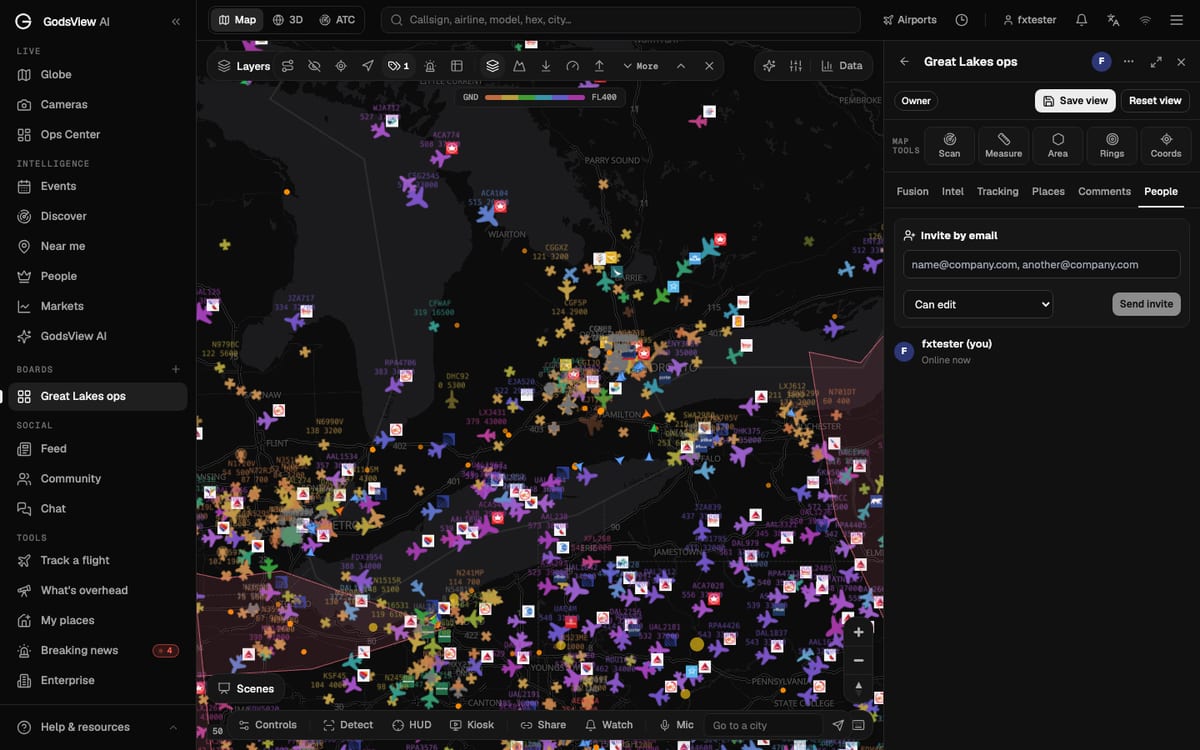
Each person gets an email with a link that's valid for 14 days. When they accept, they appear in the list with an online indicator. As owner you can change anyone between editor and viewer, or remove them. You can also copy the board's link from the ⋯ menu and send it to people who are already members.
Step 6: Turn on alerts for the board
Go to Fusion, then Rules & alerts, and tick Alert me about this board. GodsView checks the board's area every three minutes and alerts everyone who turned alerts on. There's also a Daily board brief by email at 7:00 your time. The Fusion tutorial explains the rules in detail.
Limits worth knowing
An owner can have up to 30 boards, each with up to 50 members, 60 places and 150 tracked assets. The owner can't leave a board, only delete it, from the ⋯ menu.
If your team mostly needs alerts on a few places rather than a shared map, watch areas may be enough.
Frequently asked questions
Do my teammates need GodsView Pro?
No. Creating boards needs Pro, but invited members can be on any plan and can view and comment. Give someone Can edit if they should change places, tracking or the saved view.
How long does an invite link last?
14 days. After that, send a new invite from the People tab.
How many people can join a board?
Up to 50 members per board.