How-to
How to Watch Several Live News Channels on One Screen
Newsrooms have a wall of TVs for a reason: when something breaks, the first pictures turn up on different channels at different times. You can build the same wall in a browser tab.
Key takeaways
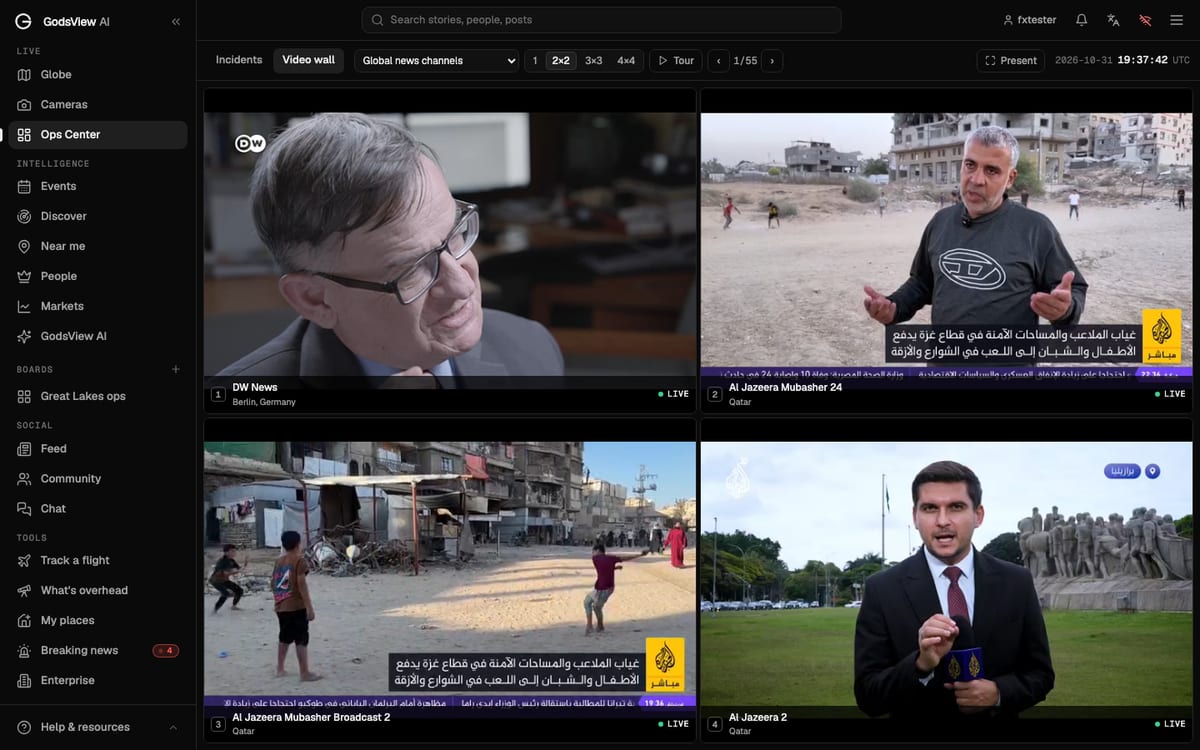
- The video wall at /ops/wall plays live news channels side by side in a 1, 2x2, 3x3 or 4x4 grid. The news presets are free.
- Presets group channels by region: global, Europe, Middle East and North Africa, sub-Saharan Africa, Asia-Pacific and the Americas.
- Only one tile plays sound at a time. Press Listen on the tile you want to hear.
- Tour flips to the next page of channels every 20 seconds; Present goes full screen for a TV or projector.
- Camera presets put live public webcams on the wall, including cameras near active incidents. Camera tiles need GodsView Plus or Pro.
To watch several live news channels on one screen, open the video wall, pick a preset such as Global news channels, and choose a grid: 2×2 for four channels, 3×3 for nine, 4×4 for sixteen. Each tile is a live broadcast. Press Listen on the one you want to hear and the rest stay muted.
That's the whole trick. The rest of this post is about why you'd want it, how I set it up for a breaking story, and the small things that make it usable for hours.
Why watch more than one channel
When a big story breaks, no single broadcaster has everything. One channel has a reporter on the scene, another has the press conference, a third is still on the weather. Regional channels often get pictures first because they're closer. If you only watch one, you see the story late and through one lens.
Newsrooms deal with this with a wall of screens. Producers glance across them, spot the channel that just cut to live pictures, and turn its sound up. You can do the same thing in one browser tab, and you don't need a TV tuner, a cable package or a dozen open tabs fighting over your speakers.
Set up the wall
The wall lives in the Ops Center. Open Ops Center in the sidebar and switch to the Video wall tab, or go straight to /ops/wall.
Across the top you'll find every control:
| Control | What it does |
|---|---|
| Preset menu | Chooses which channels or cameras fill the wall |
| 1, 2×2, 3×3, 4×4 | Sets how many tiles are on screen |
| Tour | Moves to the next page of sources every 20 seconds |
| ‹ and › | Pages through the sources by hand |
| Present | Full screen for a TV or projector; Esc to leave |
The wall remembers your layout, preset and tour setting, so it opens the same way next time.
Pick channels by region
The news presets are:
- Global news channels: international English-language broadcasters first, such as DW, France 24, Al Jazeera, Euronews, CNA and NHK.
- News · Europe, News · Middle East & N. Africa, News · Sub-Saharan Africa, News · Asia-Pacific and News · Americas: channels based in each region, many in local languages.
The regional presets are where the wall earns its keep. When something happens in one part of the world, switch to that region. Local channels go live faster and stay on the story longer than international ones, and you'll see the pictures that end up on every international channel an hour later. You don't need to understand the language to see that a channel has cut to a live shot of a fire.
GodsView doesn't run these channels. Each tile plays the broadcaster's own public live stream, the same one on its website. If a channel goes off air or blocks embedding, the tile shows that, and Next source on the tile swaps it for another channel.
Control the sound and the tiles
Sixteen channels talking at once is noise, so the wall plays sound from one tile at a time. Each tile has a few buttons:
- Listen turns that tile's sound on and mutes the others. Mute turns it off.
- Next source replaces the tile with the next channel in the preset.
- Enlarge fills the wall with that one tile. Back to grid returns.
My usual setup for a breaking story is 3×3 on the regional preset, sound on the channel with the most live pictures, and a second screen with the live map showing the area. When one tile cuts to something important I press Enlarge, watch for a minute, and go back.
Add live cameras to the wall
News channels show what editors choose. Public cameras show what's actually there right now: traffic, weather, harbors, city squares. The wall has camera presets too:
- World cameras (live video): a rotating set of live webcams from around the world.
- Cameras at active situations: cameras within a few hundred kilometers of the incidents currently ranked in the Ops Center.
- Cameras near an incident: from an incident in the Ops Center's incident list, the cameras-nearby action opens the wall on cameras around that place.
- Cameras · followed by an area name: cameras inside an area you saved on the map.
Camera tiles need GodsView Plus or Pro. Free accounts see an Unlock live cameras tile instead.
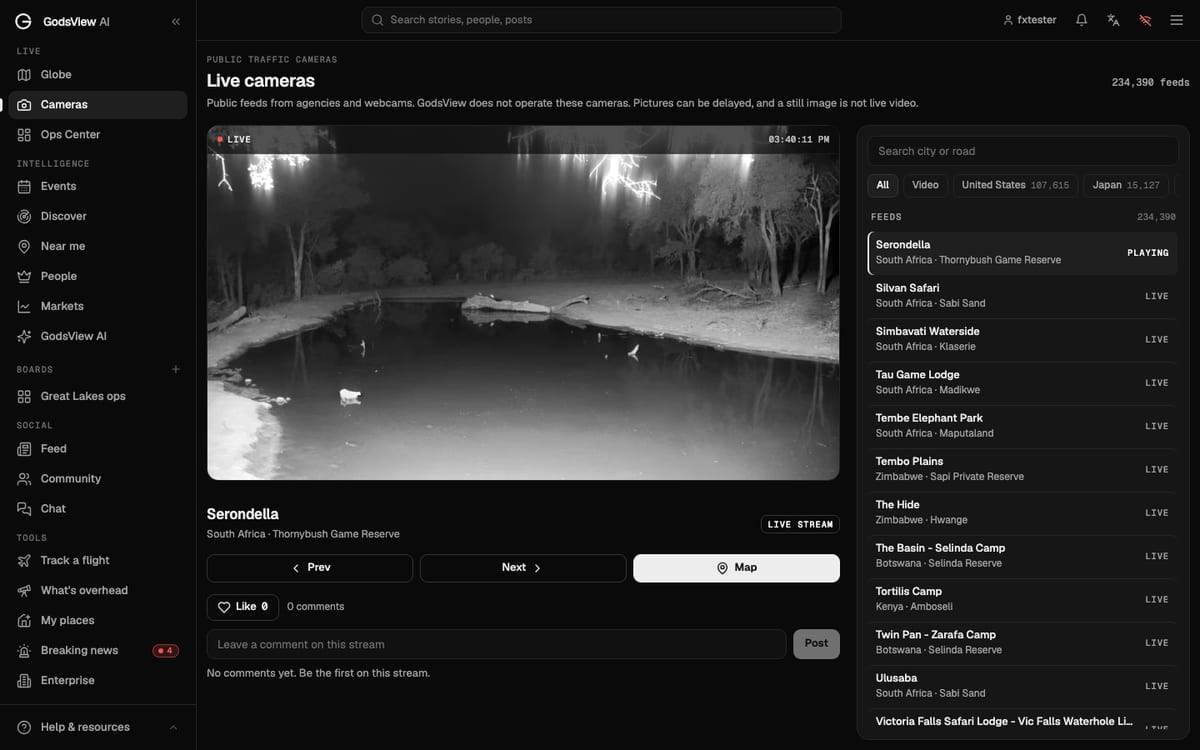
If you want to browse cameras one at a time instead, the cameras page lists more than 230,000 public feeds that you can search by city or road, with a video-only filter and a button to show each one on the map.
Put it on a TV
The wall was built for big screens. Plug a laptop into a TV, open the wall, set 3×3 or 4×4, turn on Tour if you want it to cycle on its own, and press Present. The browser chrome and the GodsView menus disappear and you're left with the grid. Press Esc to get out.
For a shared office screen, I'd pair it with the incident list. The Ops Center guide explains how incidents are scored and how the Ops Center's other tabs work, and how journalists use live maps covers the verification side: once a channel shows you something, how you check where and when it happened.
What it costs
Watching news channels on the wall is free. Camera presets need GodsView Plus or Pro, and so does the camera layer on the map. There's no limit on how long you leave the wall running.
A step-by-step version with the exact clicks is in the video wall tutorial.
Frequently asked questions
How can I watch multiple news channels at the same time?
Open the GodsView video wall, choose Global news channels or a regional preset, and pick a 2×2, 3×3 or 4×4 grid. Each tile plays a live channel. Press Listen on the one you want to hear.
Is the news video wall free?
Yes. The news channel presets are free. Live camera presets need GodsView Plus or Pro.
Can I hear more than one channel at once?
No. The wall plays sound from one tile at a time on purpose. Press Listen on another tile to switch.
Where do the channels come from?
Each tile plays a broadcaster's own public live stream. GodsView doesn't host or rebroadcast the channels, and a channel that goes off air or blocks embedding can be swapped with Next source.
Can I show the wall on a TV?
Yes. Open the wall on a computer connected to the TV, pick a layout, turn on Tour if you want it to cycle, and press Present for full screen.