Tutorial
Use the Ops Center Video Wall
A newsroom-style wall of live channels and public cameras in one browser tab. Four minutes to set up, and it remembers your setup next time.
Key takeaways
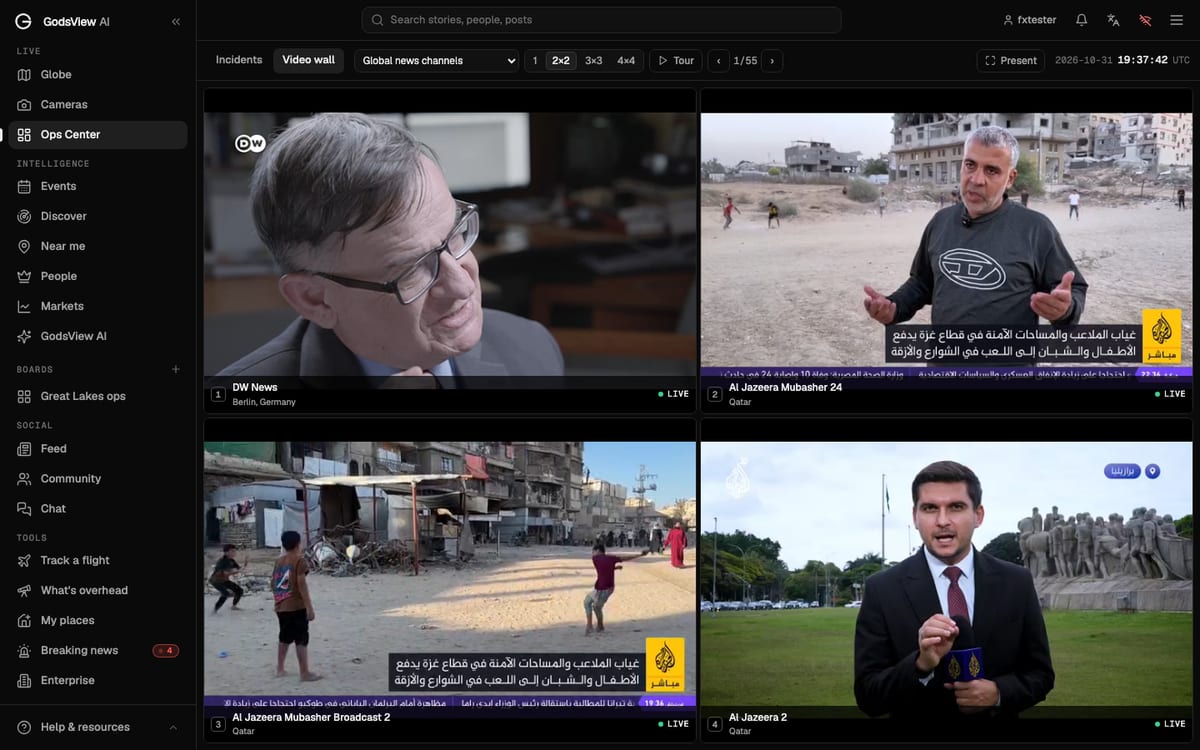
- Open Ops Center, then the Video wall tab, or go to /ops/wall.
- Pick a preset and a layout (1, 2x2, 3x3 or 4x4). Only one tile plays sound at a time.
- Tour cycles pages every 20 seconds and Present goes full screen.
Step 1: Open the wall
Click Ops Center in the sidebar and choose the Video wall tab next to Incidents, or go straight to /ops/wall. The UTC clock sits at the top right, which is handy when you're matching pictures to times in a report.
Step 2: Pick a preset
The menu on the left of the toolbar picks what fills the wall:
| Preset | What it shows | Plan |
|---|---|---|
| Global news channels | International news channels, English-language first | Free |
| News · Europe, Middle East & N. Africa, Sub-Saharan Africa, Asia-Pacific, Americas | Channels based in that region | Free |
| World cameras (live video) | Live public webcams around the world | Plus or Pro |
| Cameras at active situations | Cameras near the incidents ranked in the Ops Center | Plus or Pro |
| Cameras · your area | Cameras inside an area you saved on the map | Plus or Pro |
When you use the cameras-nearby action on an incident in the Ops Center, the wall opens on a Cameras near preset for that place.
Step 3: Choose a layout
Press 1, 2×2, 3×3 or 4×4. Four tiles is comfortable on a laptop; nine or sixteen is for a big monitor or a TV. Use ‹ and › to page through the rest of the channels in the preset.
Step 4: Control sound and tiles
Each tile has its own small set of buttons:
- Listen plays its sound and mutes the others. Mute turns it off.
- Next source swaps the tile for the next channel, useful when one is off air.
- Enlarge makes it fill the wall; Back to grid returns.
- On a camera tile, an extra button opens the camera's own page.
Step 5: Tour and present
Tour moves to the next page of sources every 20 seconds, so a 2×2 wall cycles through every channel in the preset on its own. Present hides everything except the grid, for a TV or a projector. Esc leaves presentation mode.
The wall remembers the layout, preset and tour setting for next time.
Step 6: Browse cameras one by one
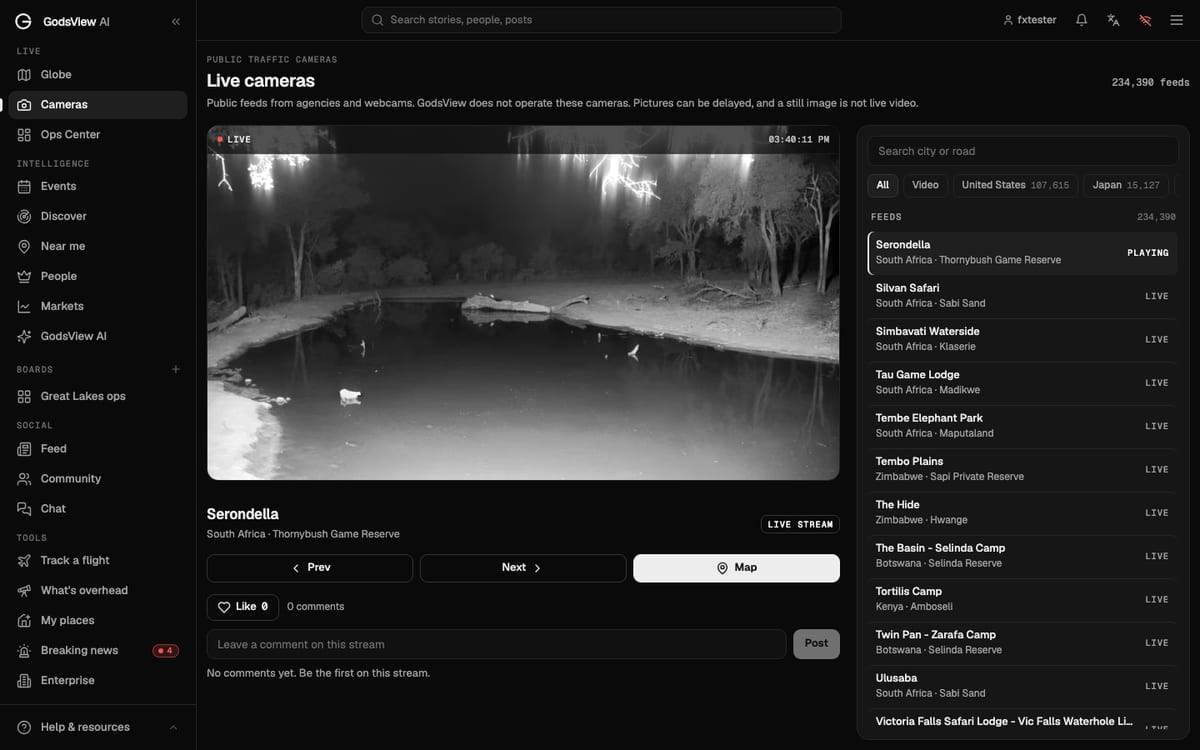
If you want a particular camera rather than a preset, open Cameras in the sidebar. It lists more than 230,000 public feeds. Search by city or road, filter to Video only or by country, and use Prev, Next and Map to move between feeds or see where a camera is. Free accounts can play five feeds there; the rest need Plus or Pro.
For how newsrooms use the wall during breaking news, read how to watch several live news channels on one screen. The Ops Center guide covers the Incidents tab.
Frequently asked questions
Is the video wall free?
The news channel presets are free. Camera presets need GodsView Plus or Pro.
Can I pick the exact channels on each tile?
Tiles come from the preset you choose. Use Next source on a tile to swap it for another channel in the same preset.