Tutorial
Track a Ship: Find It, Read It, Follow It
Ships move slowly and report a lot about themselves. Once you know where to look on the map, you can tell what a vessel is, where it says it is going and whether it is moving at all.
Key takeaways
- Turn on Vessels (AIS); ships appear as arrows pointing the way they are heading, labeled with their name.
- Search by ship name or MMSI once the area is on screen, or click a ship directly.
- The vessel details show MMSI, destination, speed, course, heading and navigation status such as Moored or At anchor.
Ship tracking uses AIS, the radio system ships use to tell each other who and where they are. If you want the background first, read what is AIS ship tracking. This tutorial is the practical part.
Step 1: Turn on ships and go to the water
On the map, open Layers, find Vessels (AIS) and switch it on. It's free. If you're on Plus or Pro, add World ports too, so you can see where the harbors are.
Ships are drawn as small arrows pointing the way they're heading, with their name next to them. Zoom in on a busy stretch of water. The Scheldt estuary between Vlissingen and Antwerp is a good one to practice on: tugs, pilot boats, barges and container ships all in a few kilometers.
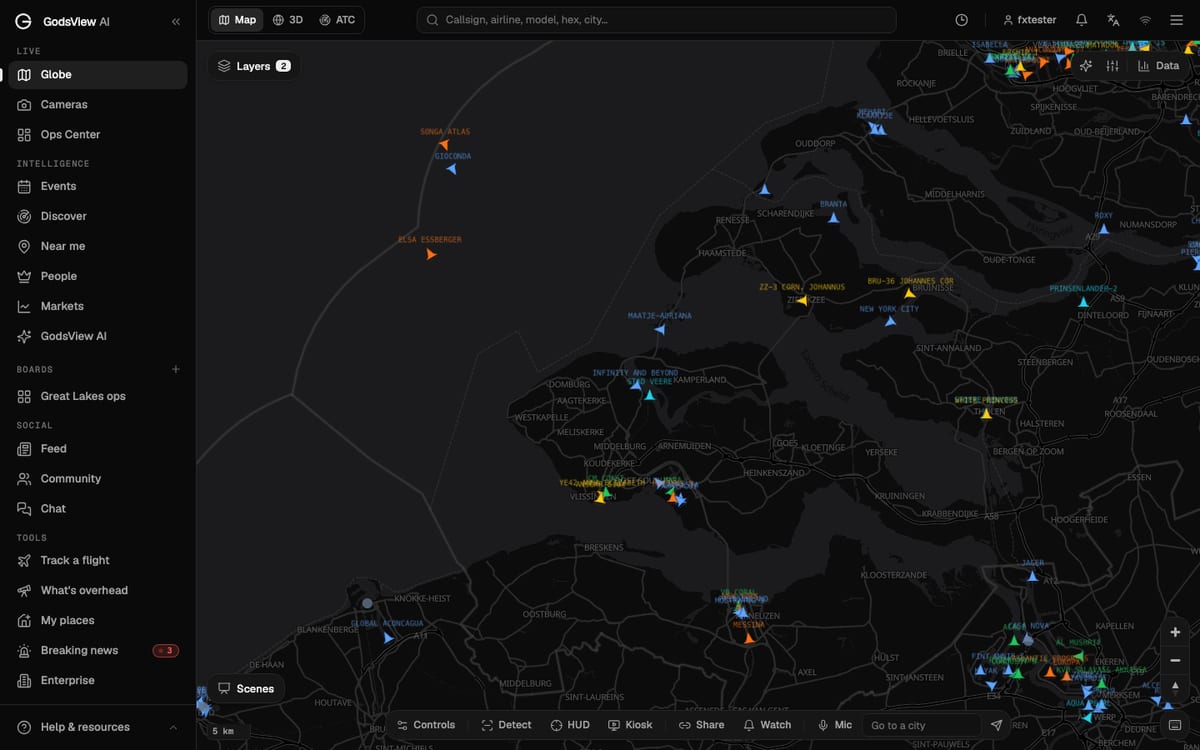
The map loads the ships in the area you're looking at, so zoom to the region first, then look for your vessel.
Step 2: Search for the ship
Type the ship's name or its 9-digit MMSI into the search box at the top. With the area on screen, matching ships appear with their MMSI underneath. Typing "CMA CGM" near Antwerp lists three ships of that line nearby, plus some places.
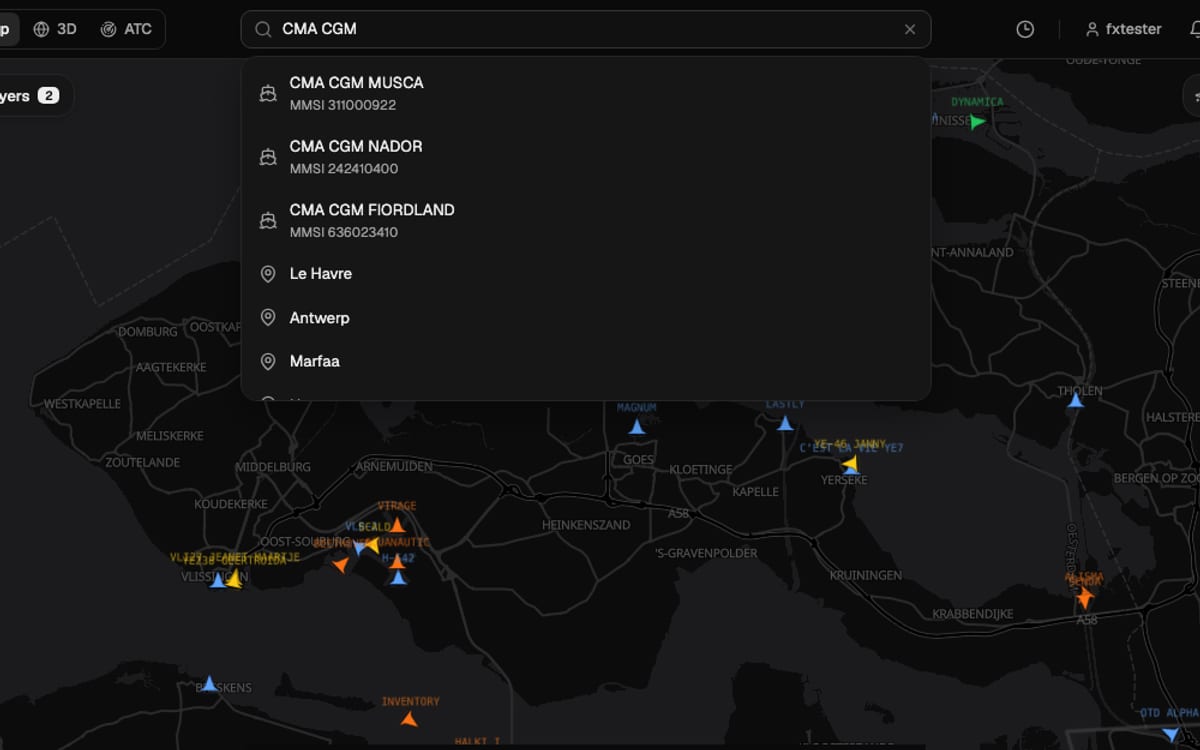
Names aren't unique. Several boats can share a name, so if you have the MMSI, use it. The blog guide on how to track a ship explains how to find a ship's MMSI or IMO number from its name.
Step 3: Click the ship and read its details
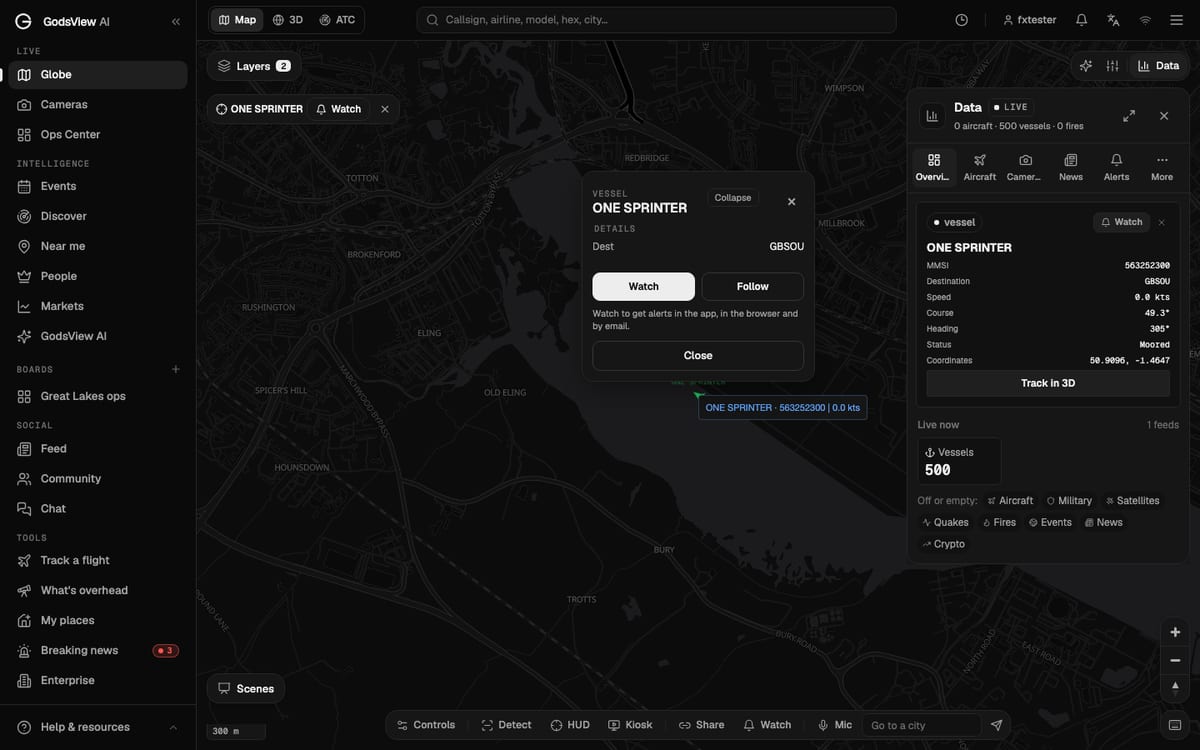
Click a ship (or a search result) and two things open: a small card on the map and the vessel details in the data panel.
Here's what each field means:
| Field | Example | What it tells you |
|---|---|---|
| MMSI | 563252300 | The ship's radio identity; the first three digits hint at the flag |
| Destination | GBSOU | Typed in by the crew; often a UN/LOCODE port code (GB = Britain, SOU = Southampton) |
| Speed | 0.0 kts | Speed over ground in knots |
| Course and heading | 49.3° and 305° | Which way it is moving and which way the bow points |
| Status | Moored | The crew's navigation status: Under way using engine, At anchor, Moored and so on |
| Coordinates | 50.9096, -1.4647 | Its last reported position |
A ship that's moored will often show a course and heading that don't match. That's normal: when it isn't moving, course is noise.
Destination is free text. Crews forget to update it, and some write "FOR ORDERS". Treat it as a hint, not a schedule. GodsView shows the destination but not the ETA a ship broadcasts. That ETA is typed in by hand too, so for an arrival time, ask the port or the ship's agent.
Step 4: Browse every ship in a table
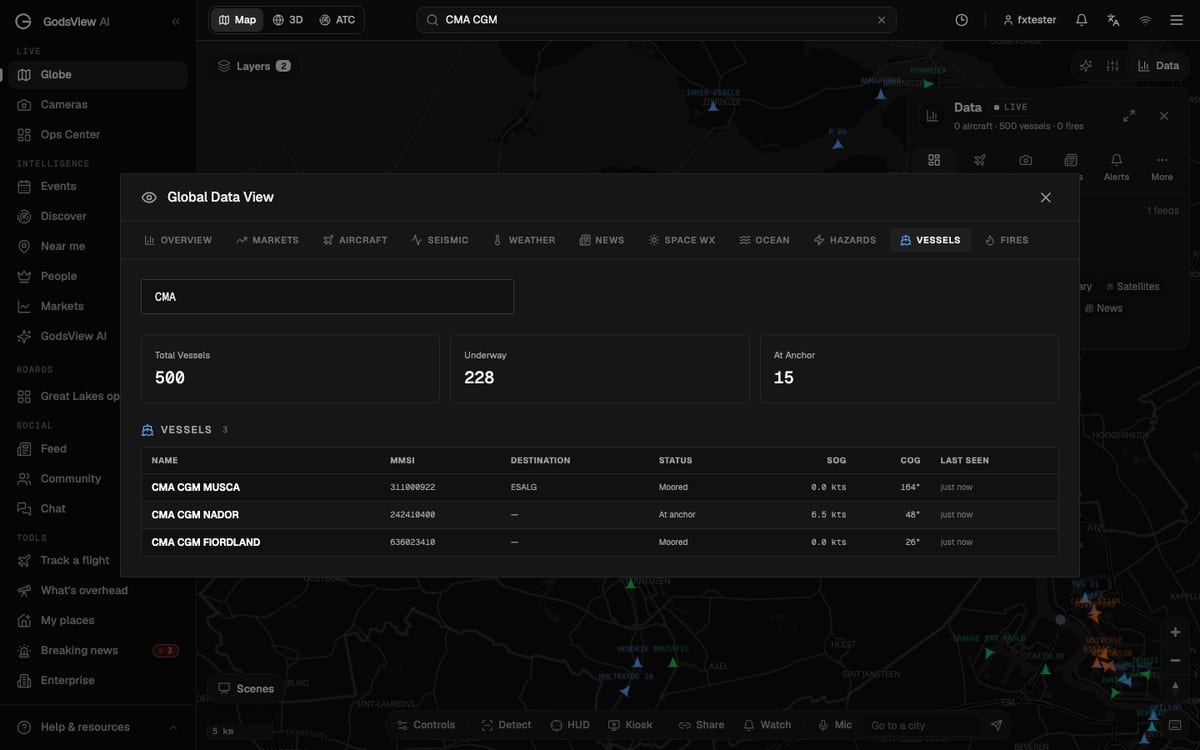
Sometimes you don't know the name. Open Data at the top right, press the expand icon, and pick the Vessels tab in the Global Data View. You get a table of every ship loaded on the map: name, MMSI, destination, status, speed (SOG), course (COG) and when it was last seen, with counts for underway and at anchor.
Type into "Search name, MMSI, destination..." to narrow it down. Searching a port code like "BEANR" (Antwerp) is a quick way to see which ships say they're headed there.
Step 5: Follow it, watch it, share it
On the ship's card:
- Follow keeps it centered as it sails.
- Watch sends you an alert when it arrives or moors, gets underway, or goes quiet for 30 minutes. Alerts need a paid plan; the alerts tutorial shows the options.
- Track in 3D (Plus or Pro) shows the ship in the 3D view.
And Share at the bottom of the map copies a link with the ship selected.
Good to know
Coverage is best near coasts and in ports, where shore receivers hear ships clearly. In the middle of an ocean a ship's last position can be hours old. If you follow shipping through narrow straits, shipping chokepoints on a live map is worth reading next.
Frequently asked questions
Can I track a ship for free?
Yes. The Vessels (AIS) layer, search, ship details and the vessels table are free. The ports layer, 3D tracking and alerts need a paid plan.
Why can I not find a ship by name?
Ships load for the area on screen. Zoom to the region where the ship should be, then search. If it is far out at sea, it may not have been heard recently.
Does GodsView show a ship ETA?
No. It shows the destination the crew reports. The ETA in AIS is also typed in by hand, so for a reliable arrival time ask the port or the ship's agent.